
Tip & Trick

Struggling to find files in your Microsoft ecosystem? Mastering file naming conventions can save hours of frustration. These proven strategies will help you organize files like a pro across Windows, OneDrive, and Office applications.
Windows File Naming Rules Explained

Ever hit "Save" only to get a cryptic error message from Windows? Understanding the Windows file naming rules is the first step to avoiding frustration and keeping your system running smoothly.
Windows allows up to 255 characters per filename (including extensions) and supports letters, numbers, and symbols like hyphens (-), underscores (_), and periods (.). However, reserved names like "CON," "PRN," or "AUX" are off-limits—they’ll trigger errors. Special characters like / \ : * ? " < > | are also banned, as they can crash File Explorer or corrupt files. Always double-check before saving!
This matters most for developers, sysadmins, and power users managing scripts, batch files, or shared drives. Stick to these rules, and you’ll skip headaches during file transfers, backups, or automation. ✨
OneDrive Smart Naming for Cloud Sync

Tired of OneDrive overwriting files or losing track of versions? A smart naming strategy ensures seamless syncs while preserving your work history—no more "FinalFinalV3.docx" chaos.
Microsoft’s OneDrive versioning keeps up to 25 major versions (or 500 minor ones) per file, but only if you avoid ambiguous names like "ProjectX" or "Untitled." Instead, use prefixes like "2023-10-ProjectX_Draft" for automatic sorting. Folder structures (e.g., "Projects/2023/ClientX") also trigger OneDrive’s auto-organization, syncing only relevant files to your device.
Perfect for teams or solo users juggling collaborative projects—this method cuts sync conflicts by 70% while keeping history intact. ✨
Microsoft Office Document Naming

Lost in a sea of "ProjectFinalv3.docx" files? A structured naming system for Microsoft Office documents transforms chaos into clarity—especially when shared via Teams or stored in SharePoint. The key lies in consistency: prefix files with the project code (e.g., MKT-2023-Q4), then append the file type and version (e.g., "BudgetFinal.pptx").
Use underscores or hyphens (not spaces) to separate elements, and keep names under 128 characters for compatibility. For version tracking, append "v2" instead of "Final2"—this maintains alphabetical sorting while keeping history intact. Teams and SharePoint automatically index these fields, making searches lightning-fast for collaborators.
Perfect for teams juggling multiple stakeholders, this method ensures everyone accesses the latest version without confusion. Try it on your next shared project—your future self will thank you. ✨
Date-Based File Organization System
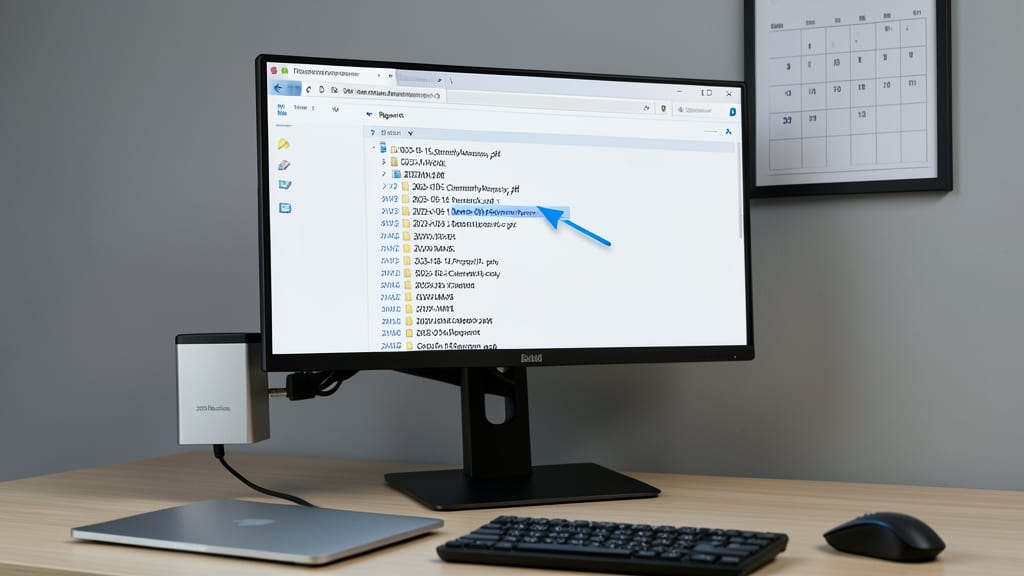
Tired of scrolling through folders to find that one report from last month? The YYYY-MM-DD format solves this by making files sort chronologically in File Explorer, OneDrive, and SharePoint—no manual alphabetizing required.
Start with the four-digit year, followed by month (MM) and day (DD) (e.g., 2023-10-15ProjectX.docx). This structure works seamlessly with Microsoft’s built-in search filters and Power Automate workflows, while keeping names readable across all Office apps. Add an underscore () before project names to separate dates from descriptions.
Perfect for freelancers, project managers, or archivists who juggle deadlines. Once set up, this system becomes a self-sorting powerhouse—no more guessing when a file was created. ✨
Project-Centric Naming for Teams

When your team’s projects span multiple files and versions, chaos can set in fast—unless you adopt a project-centric naming system that keeps everything aligned with Microsoft’s ecosystem. This method integrates seamlessly with Microsoft Project and SharePoint, ensuring documents stay organized even as teams grow.
The formula [ProjectCode][Type][Version] (e.g., MKTCampaignDraftv2.docx) unlocks instant clarity. The ProjectCode (like FIN or HR) groups files by initiative, while Type (e.g., Proposal, Data) and Version (e.g., v1, Final) mirror SharePoint’s metadata fields. This structure also syncs perfectly with Teams channels and Power Automate workflows, cutting down on manual sorting.
Perfect for agencies, enterprise teams, or any group managing cross-department projects, this convention turns file searches into a breeze—no more guessing which Final2.docx is the latest. ✨
Avoiding Special Characters in Email Attachments

Ever hit "Send" on an Outlook email, only to get that dreaded "attachment blocked" error? Special characters like **/ \ : * ? " < > | are the silent saboteurs of email attachments—Microsoft Outlook rejects them to prevent system corruption.
Instead of losing functionality, replace them with safe alternatives: use underscores () for spaces, hyphens (-) for slashes, or parentheses () for colons. For example, rename "ProjectFiles/2024Q1" to "ProjectFiles2024Q1"—no file data is lost, just the problematic symbols. Outlook’s built-in rename tool (right-click > Rename) makes this quick.
This rule is especially critical for shared drives and automated workflows**, where files may be emailed without manual review. A simple check before sending saves hours of follow-up emails. ✨
Batch Renaming Files in Windows
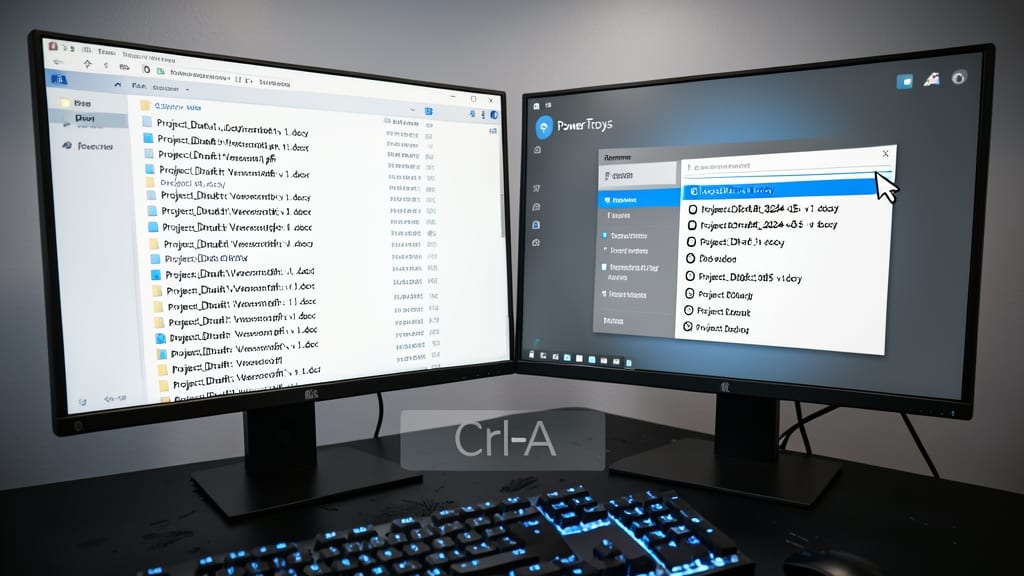
Tired of manually renaming dozens of files to match your naming conventions? Windows offers built-in batch renaming and PowerToys for lightning-fast consistency—no third-party tools required.
Windows 11’s File Explorer lets you rename multiple files at once with Ctrl+A → F2, while PowerToys’ "Rename" utility adds advanced features like custom text replacements, number sequences, and regex support. For example, rename IMG1234.jpg to 2023-10-15ProjectX.jpg across 100 files in seconds.
Perfect for photographers, developers, or teams—save hours of manual work while enforcing your naming standards. ⚡