
PowerPoint
PowerPoint transitions can transform a dull presentation into an engaging visual experience. These seven transition effects help maintain smooth slideshow flow while keeping your audience focused on your message—not the animation.
Fade Slide Transition
When your presentation demands polish without distraction, the Fade Slide Transition is the quiet MVP of PowerPoint effects. Unlike flashy animations, it dissolves one slide into the next with zero visual clutter, ensuring your audience stays locked on your content—not the spectacle.
Available in all PowerPoint versions (Desktop, Online, and Mobile), this transition works seamlessly with any slide theme and requires zero setup. Adjust the speed (0.1s to 5s) to match your pacing, or add a subtle sound effect for extra professionalism. The universal compatibility means it’ll look polished whether you’re presenting to a boardroom or a virtual team.
Perfect for corporate reports, financial reviews, or training modules, this transition keeps the focus where it belongs: on your message. 💡
Push Slide Transition
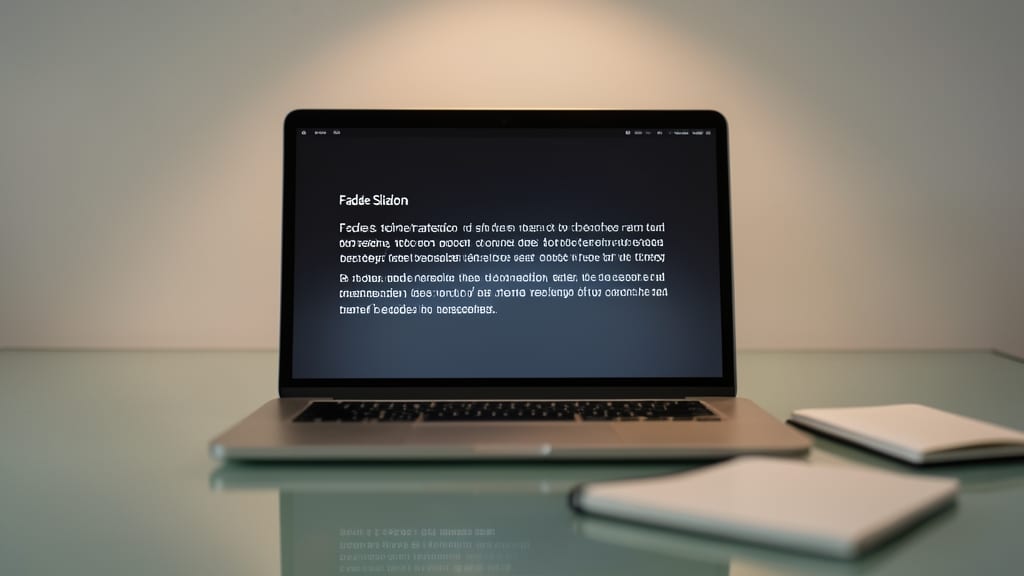
Need to make your presentation feel like a well-paced story? The Push Slide Transition mimics the classic physical slide projector effect, where one slide smoothly pushes the next out of view. This isn’t just a simple move—it adds a tactile, almost cinematic feel that keeps your audience engaged without distracting from your content.
You can adjust the direction (left, right, up, or down) and speed to match your pacing, making it ideal for tutorials or step-by-step explanations. Unlike flashy effects, the Push transition feels intentional, guiding your audience through sequential ideas naturally. Best of all, it works seamlessly across PowerPoint 2016 and later, including the online and mobile versions.
Perfect for educators, trainers, or anyone presenting a process—this transition turns static slides into a dynamic narrative. ✨
Wipe Slide Transition
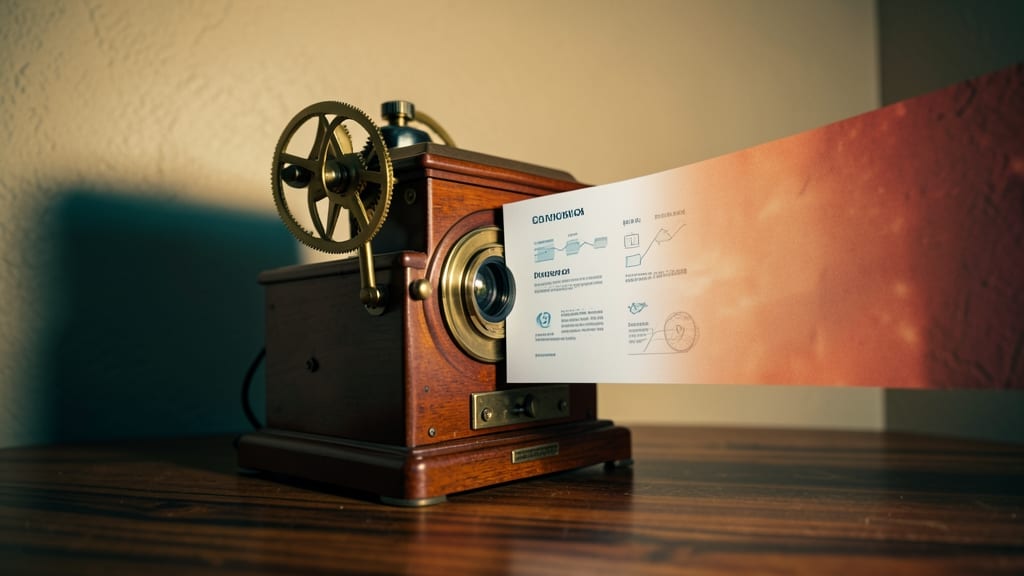
Need to direct your audience’s focus like a spotlight? The Wipe Slide Transition lets you control movement—left, right, up, or down—to emphasize key sections in your presentation.
This effect replaces one slide with a dynamic wipe along your chosen axis, making it perfect for educational content where you want to highlight transitions between topics. You can even adjust the speed and direction to match your pacing, ensuring your message stays front and center.
Teachers, trainers, and educators will love how this transition visually guides learners through complex ideas without distraction. 💡
Morph Slide Transition
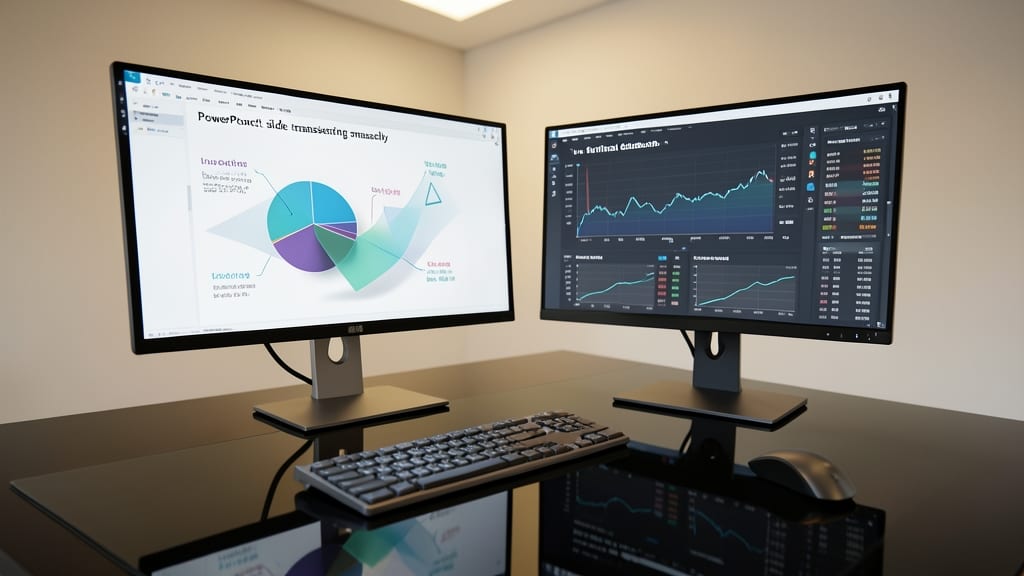
When your slideshow hinges on data-driven storytelling—like financial reports or scientific comparisons—the Morph transition becomes your secret weapon. Unlike abrupt cuts or directional wipes, Morph fluidly animates text, shapes, and objects from one state to another, preserving visual continuity while guiding the audience through complex ideas.
This transition works by analyzing slide elements and calculating a smooth interpolation between them. You can morph charts into updated versions, shapes into new configurations, or even text labels into revised data points—all without losing context. Best of all, it’s built into PowerPoint’s Transitions tab (available in PowerPoint 2016 and later), requiring just a few clicks to apply. For presentations where every detail matters, Morph ensures your audience stays locked onto the message, not the mechanics.
Data analysts, marketers, and educators will find Morph indispensable for sequential comparisons or progressive reveals. Just avoid overusing it with slides that lack clear visual relationships—subtlety is key. ✨
Zoom Slide Transition
Need to make a single point unforgettable in your presentation? The Zoom Slide Transition turns attention into a spotlight by dramatically zooming in or out of key slide elements. Unlike static transitions, this effect creates cinematic energy—perfect for keynote speeches or product demos where you want to emphasize a specific feature, statistic, or visual.
You can customize the zoom direction (in or out) and speed to match your pacing, while the center point lets you focus on exact elements like logos, charts, or call-to-action buttons. For maximum impact, pair it with a sound effect (like a subtle "whoosh") to reinforce the visual emphasis. Pro tip: Use this sparingly—once per presentation—to avoid overwhelming your audience.
Ideal for sales pitches, product launches, or educational highlights, this transition works best when you want to pause and direct focus to one critical element. Just don’t overuse it—or you’ll risk turning your presentation into a visual rollercoaster. ✨
Box In/Out Transition

Want to make your design portfolio or creative pitch stand out? The Box In/Out Transition adds a cinematic framing effect that isolates key visuals before revealing the full slide—perfect for designers, artists, or architects showcasing work.
This transition works by either zooming in from a box (Box In) or expanding outward to a box (Box Out), creating a natural pause that directs attention. You can customize the box size, speed, and direction (horizontal/vertical) to match your presentation’s aesthetic. It’s especially effective for before-and-after comparisons or highlighting a single design element.
Ideal for creative professionals or anyone presenting visual-heavy content, this transition adds a polished, intentional feel without overwhelming the audience. 🌟
Split Transition
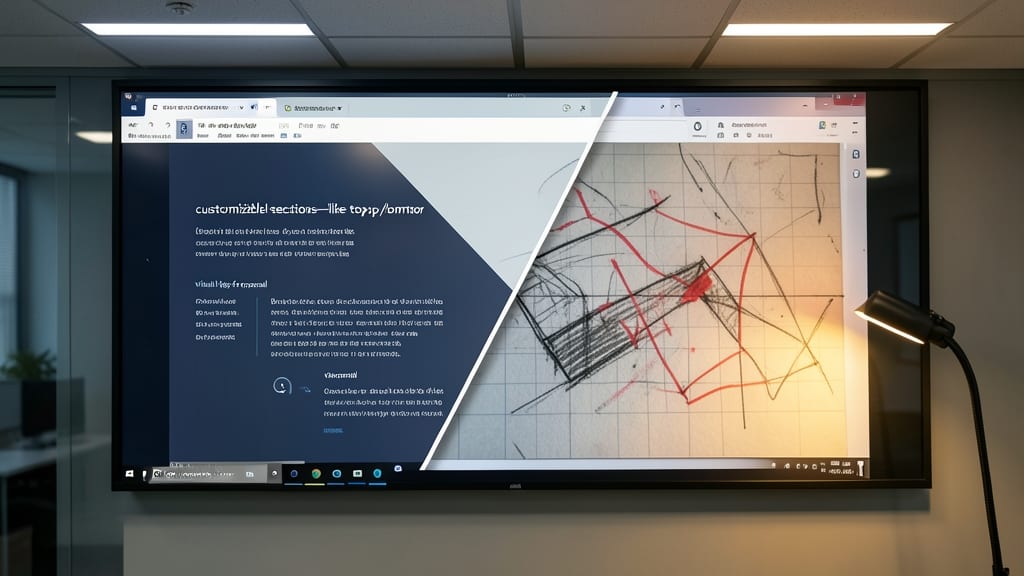
Need to compare two ideas side-by-side without losing your audience's focus? The Split Transition in PowerPoint divides your screen into customizable sections—like top/bottom or left/right—revealing contrasting content simultaneously. This isn’t just a transition; it’s a visual bridge for parallel storytelling.
You can choose from horizontal or vertical splits, adjust timing for each section, and even add sound effects for emphasis. Perfect for A/B comparisons in sales pitches or technical breakdowns in training sessions, this effect keeps both sides visible while guiding the viewer’s eye. The zero-configuration setup makes it easy to apply across slides.
Trainers and sales teams will love this for side-by-side demos, while educators can use it to highlight before-and-after scenarios. Try it when you need to show two perspectives without breaking flow. ✨