Tip & Trick
Struggling to work faster in Microsoft Word? These seven hidden Microsoft 365 Word tips and tricks will transform how you create, edit, and collaborate—saving you hours weekly without sacrificing quality.
Quick Parts Gallery for Reusable Content
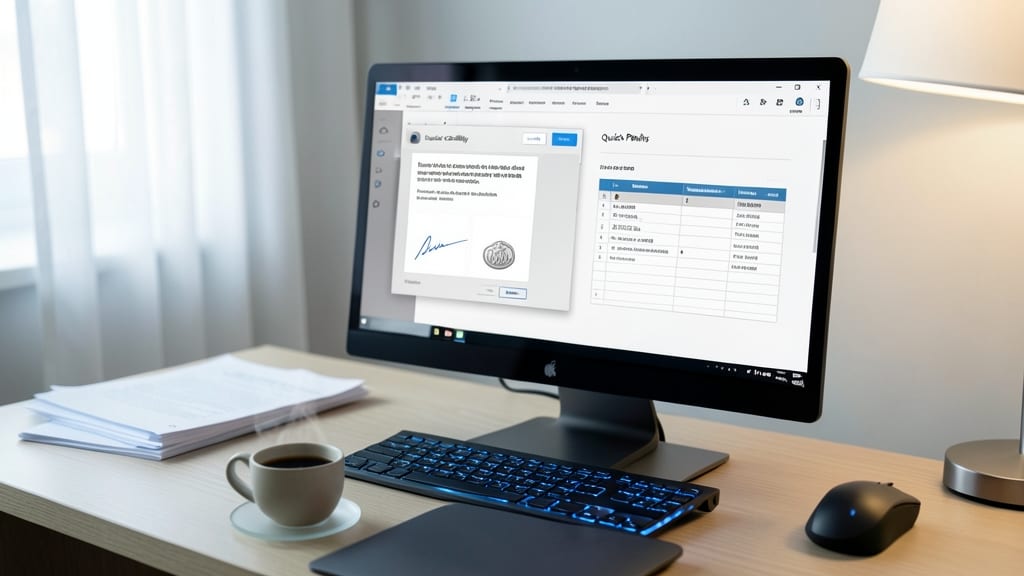
Tired of retyping the same disclaimers, signatures, or tables in every document? The Quick Parts Gallery in Microsoft 365 Word lets you store and reuse frequently used text, tables, or graphics with just a few clicks—no copy-pasting required.
To get started, highlight the content you want to save, then click Insert > Quick Parts > Save Selection to Quick Parts Gallery. Give it a name (like "Legal Disclaimer" or "Project Table") and it’s instantly available in any document. You can even organize them into folders for easy access. For tables or graphics, use Insert > Quick Parts > Document Property to pull in dynamic elements like page numbers or dates.
This is a game-changer for legal teams, marketers, or anyone drafting repetitive reports—cut down on manual work and keep your documents consistent. ⚡
Track Changes with Comments and Final Version
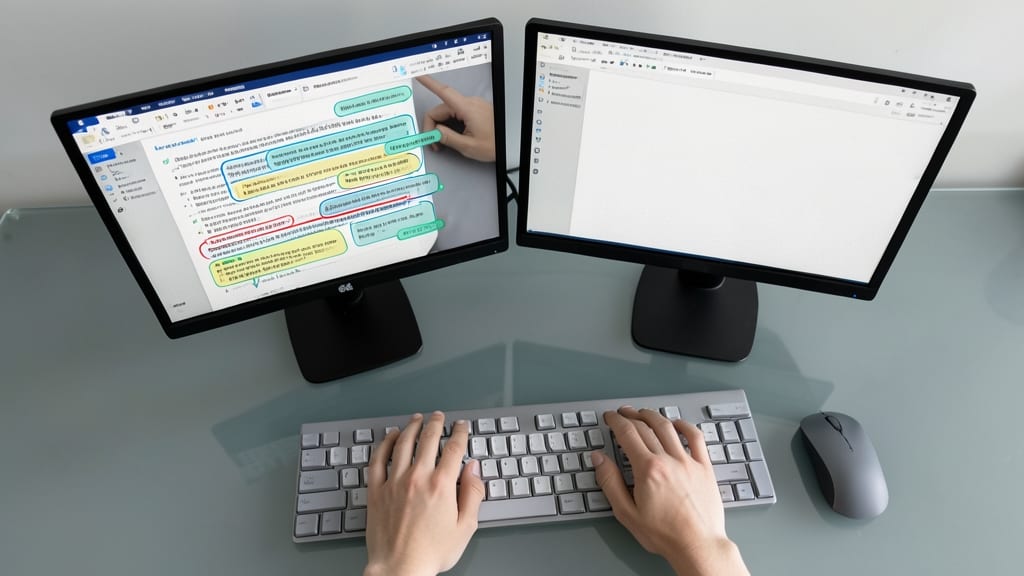
Struggling to keep track of edits while collaborating on a document? Microsoft Word’s Track Changes with Comments feature lets you mark revisions and add contextual feedback—all in one place. This powerful tool highlights additions, deletions, and formatting changes in real time, while inline comments let team members discuss specific edits without cluttering the main document.
To get started, enable Track Changes via the Review tab, then click New Comment to add notes tied directly to the text. When edits are approved, simply click Accept or Reject changes, then generate a clean final version with Final Showing Markup removed—keeping only the approved content. This streamlines workflows for legal teams, marketing agencies, or any group working on shared drafts.
Perfect for project managers, editors, or educators leading collaborative writing projects, this feature turns messy feedback loops into organized, efficient revisions. ✨
Navigation Pane for Large Documents
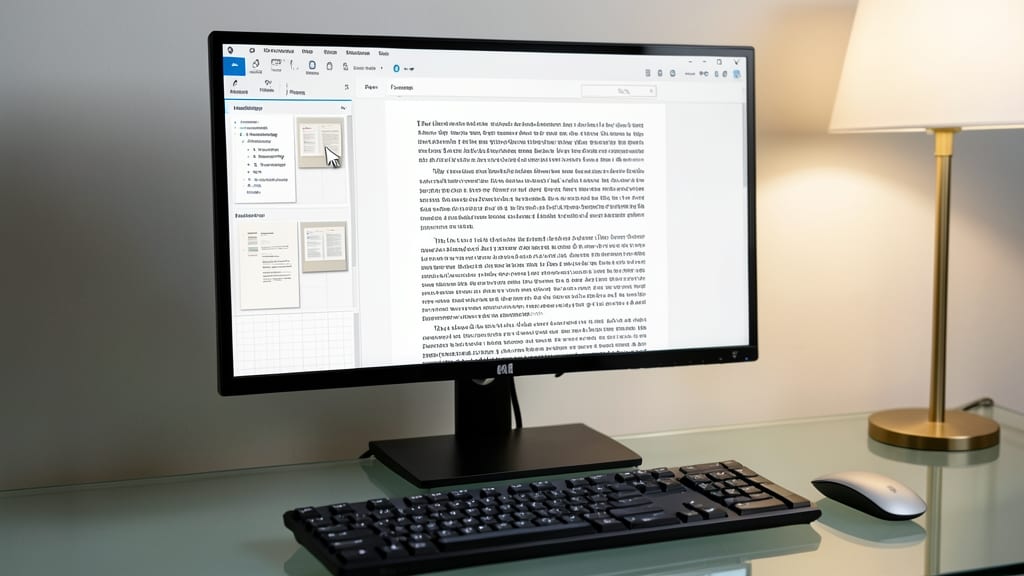
Drowning in a 50-page thesis or a 300-page manual? The Navigation Pane in Microsoft Word is your lifeline—turning endless scrolling into instant jumps with just a click.
Access it via View > Navigation Pane (or press Ctrl+F twice) to reveal a three-tab system: headings, pages, and results. Click any heading to zoom straight to it, or search for keywords to highlight matches across the document. For tables of contents, Word even auto-generates clickable links—no manual formatting needed.
Perfect for academics, technical writers, or anyone wrestling with lengthy reports. Spend less time hunting for sections and more time refining content. ✨
Text to Speech for Editing and Review
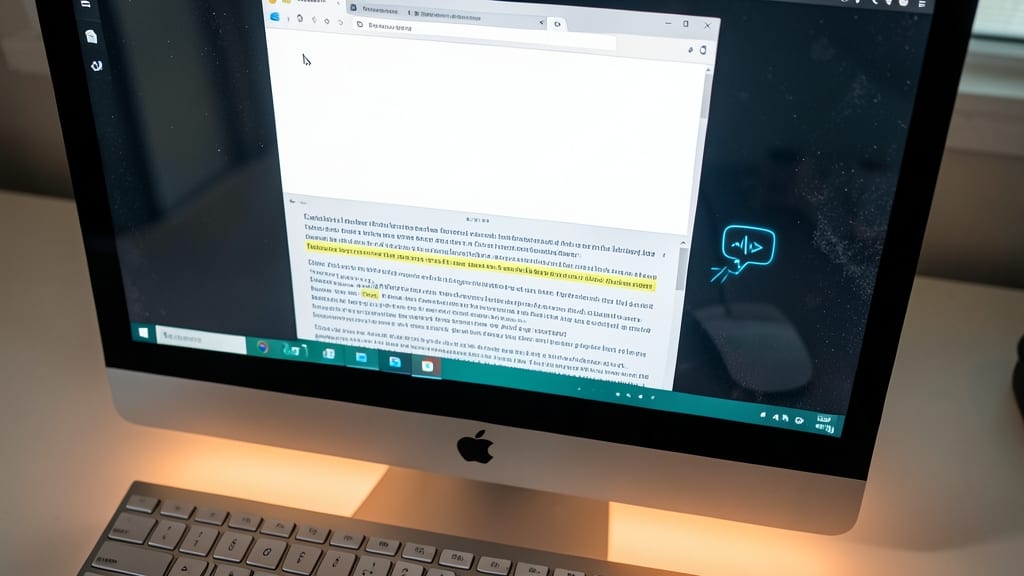
Ever stare at a blank screen or a wall of text, wondering if your document sounds as polished as it looks? Microsoft Word’s built-in Text to Speech (TTS) feature reads your work aloud—highlighting awkward phrasing, missing words, or even misplaced punctuation you might overlook while reading silently.
To activate it, press Alt + Enter (Windows) or Option + Enter (Mac) to open the Speak pane, then click Start Speaking. Choose from 14 natural-sounding voices (including male/female options) and adjust the speed to match your workflow. It’s especially powerful for non-native English speakers or when reviewing dense reports—your ears catch what your eyes miss.
Perfect for students, writers, or professionals editing long documents, this tool turns passive reading into an active proofing session. Give it a try before your next deadline! ⚡
Customizable Quick Access Toolbar
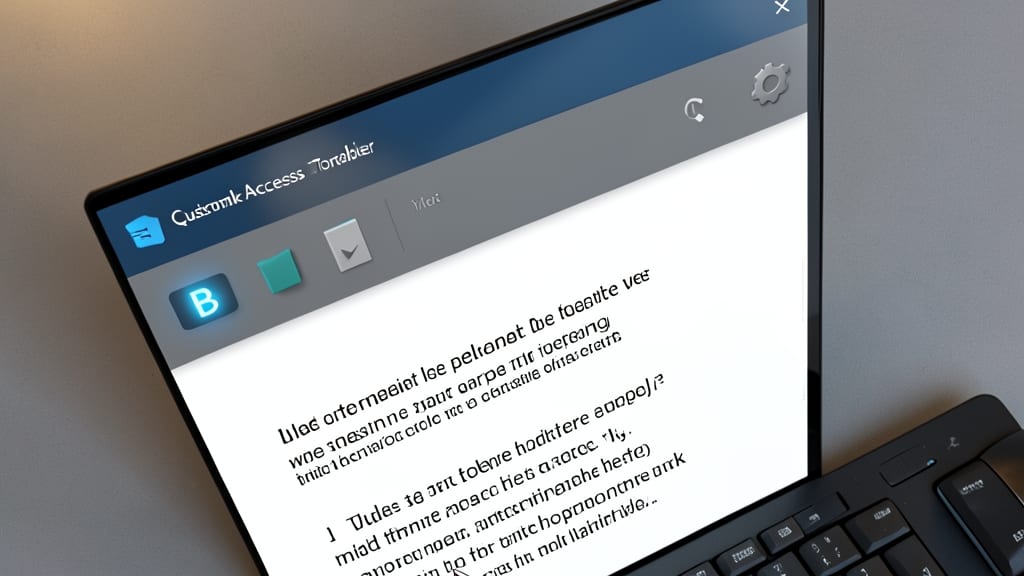
Tired of hunting through menus for the same formatting commands every time? The Customizable Quick Access Toolbar lets you pin your most-used actions—like bold, bullet points, or even macros—to a floating bar at the top of your screen. This tiny tweak can shave minutes off daily tasks, especially if you frequently apply the same styles or run the same scripts.
To set it up, right-click the toolbar and select "Customize Quick Access Toolbar." Drag and drop commands from the dropdown menus (like Review > Track Changes or Home > Font) to add them instantly. You can even group related actions—think Ctrl+Shift+S for Save or Alt+Shift+P for Print—into a single click. The toolbar remembers your preferences across documents, so your power tools are always within reach.
Perfect for freelancers, students, or corporate writers who repeat the same formatting steps daily, this feature turns Word into a personalized powerhouse. ⚡
Compare Documents for Edits and Revisions
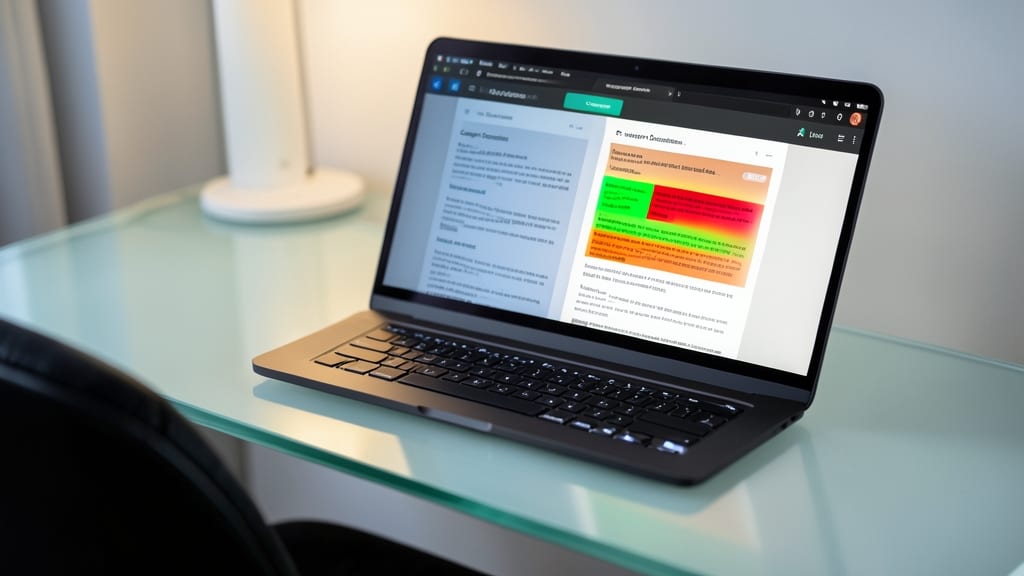
Ever wasted hours manually cross-referencing two versions of the same document? Microsoft Word’s Compare Documents feature solves this with a real-time side-by-side split view, color-coding additions, deletions, and formatting changes instantly.
To use it, go to Review > Compare > Compare, then select your original and revised files. The tool highlights differences in green (additions), red (deletions), and blue (formatting changes), letting you resolve conflicts with a single click. It even handles tracked changes and comments from both versions, making it ideal for legal drafts or grant proposals where precision matters.
This is a game-changer for legal teams, academics, or anyone juggling multiple contributors. No more printing and scribbling—just seamless, digital collaboration. ✨
Dictation Feature for Hands-Free Writing
Tired of typing the same ideas over and over? Microsoft Word’s dictation feature lets you speak your thoughts directly into a document with 95% accuracy, turning voice commands into polished text in real time. Whether you're drafting emails, brainstorming ideas, or working in a noisy environment, this hands-free tool adapts to your speech patterns and even recognizes punctuation like commas and periods.
To get started, simply press Win + H (Windows) or enable it via the Dictate button in the Review tab. The feature supports over 100 languages and works seamlessly with your device’s microphone—no extra hardware needed. You can also pause, rewind, or edit spoken text as you go, making it perfect for quick revisions or capturing spontaneous ideas without losing momentum.
This is a game-changer for writers, professionals on calls, or anyone who struggles with typing speed. Give it a try the next time you’re stuck at a keyboard—your fingers (and back) will thank you. ✨