Software
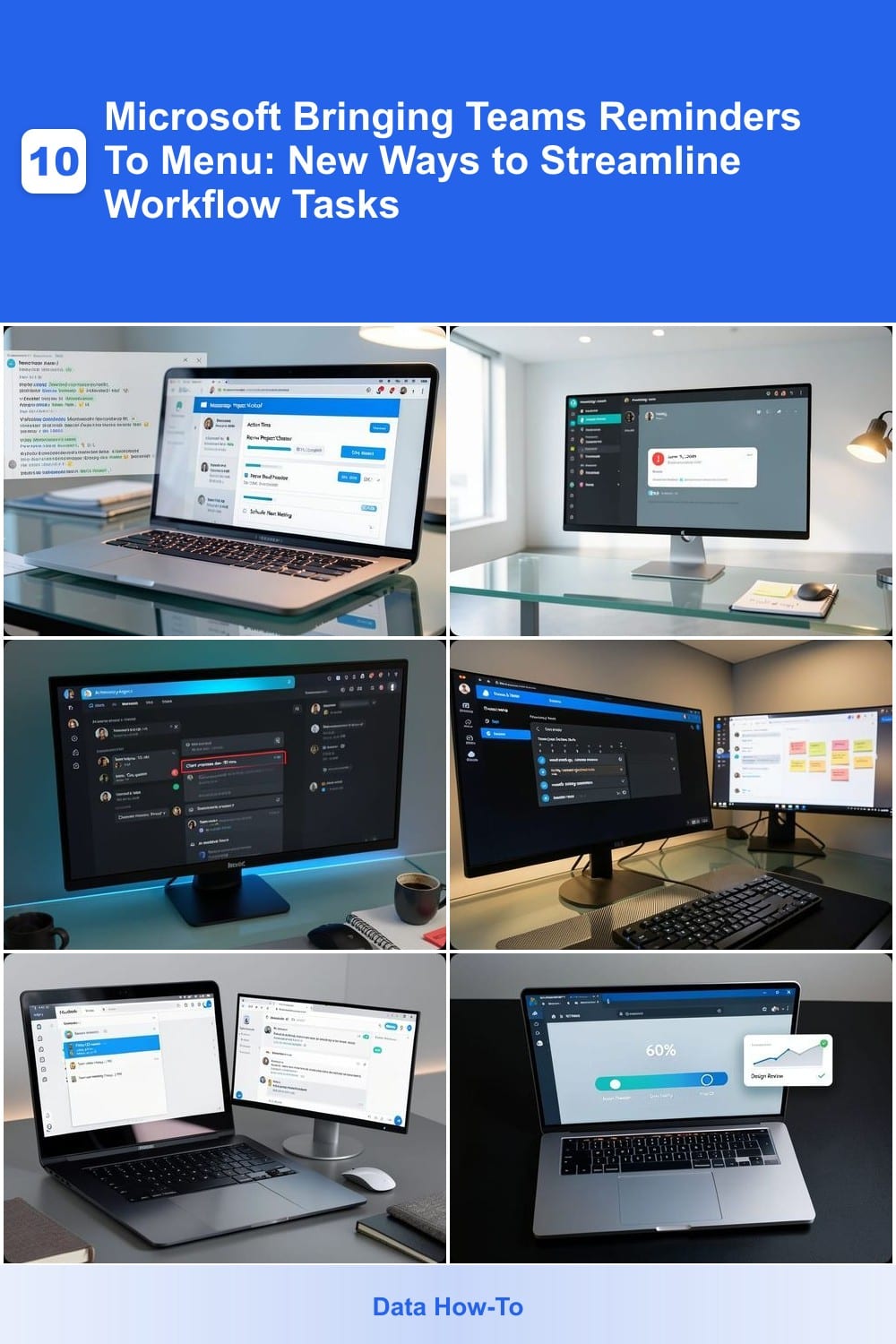
Microsoft Teams is evolving beyond chat and calls, integrating smart reminders that keep your workflow on track. These 10 new reminder features help automate follow-ups, deadlines, and task management—directly from your Teams interface.
Automated Meeting Follow-Up Reminders
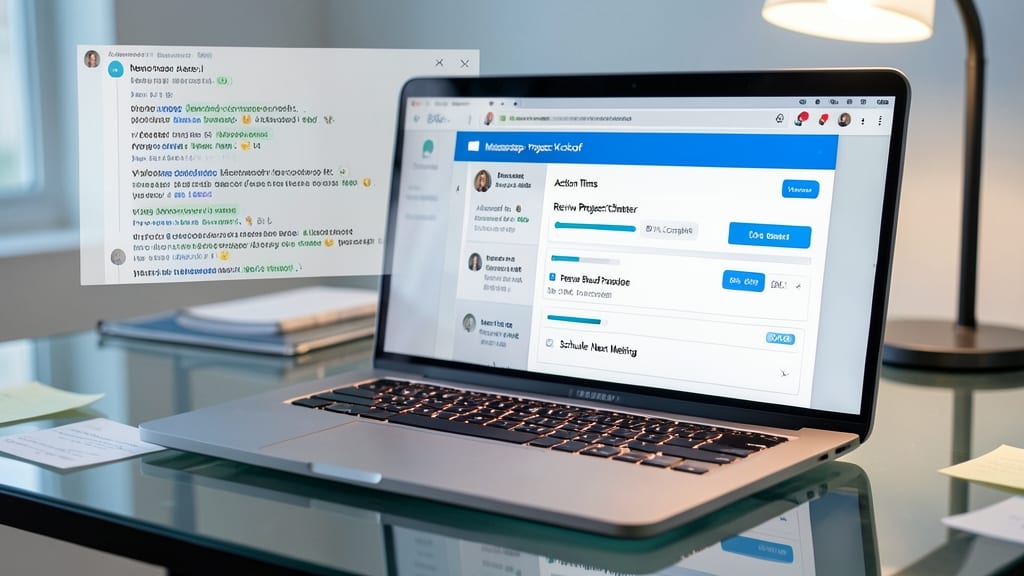
Fed up with chasing down meeting action items buried in emails or forgotten notes? Microsoft Teams now auto-generates post-meeting reminders with key action items, deadlines, and owners—all in one clickable recap card. No more sifting through chat history or sending follow-up emails to confirm who’s responsible for what.
The feature uses AI-powered transcription to extract action items directly from meeting recordings (if enabled), then formats them into a clean, shareable card with assigned owners, due dates, and priority labels. You can even @mention teammates to notify them instantly. For recurring meetings, Teams remembers past action items and suggests follow-ups based on your team’s patterns.
This is a game-changer for project managers, sales teams, or anyone hosting frequent meetings—cutting the time spent on manual follow-ups by up to 60%. Just hit “Send Recap” at the end of your call, and let Teams handle the rest. ⚡
Channel-Specific Task Deadlines
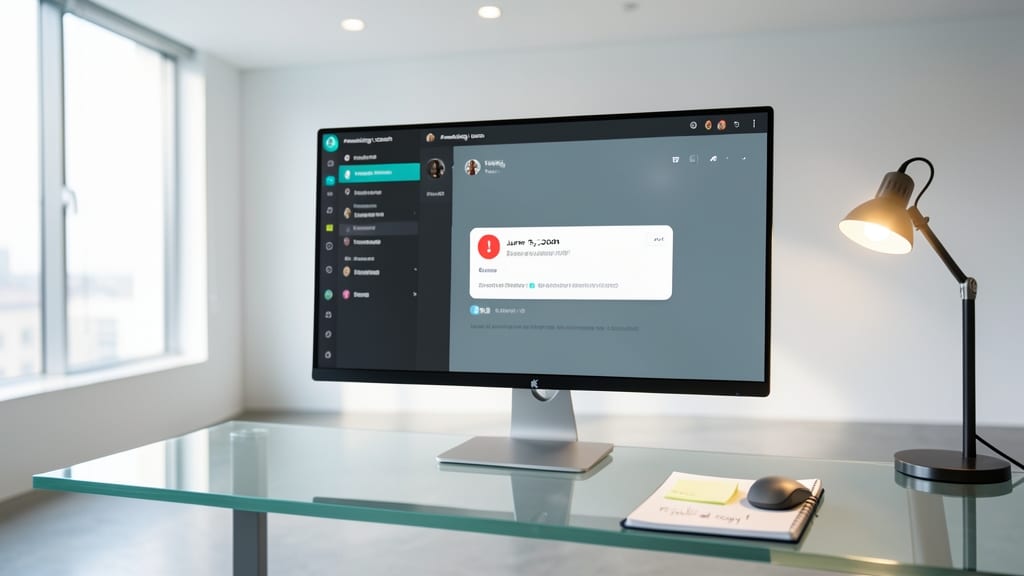
Lost in a sea of reminders that don’t apply to your current project? Microsoft Teams now lets you pin deadlines and tasks directly to specific channels, so updates appear exactly where your team is already collaborating.
Create a reminder tied to the #marketing-launch channel, and it’ll show up in that channel’s feed alongside relevant discussions—no more digging through personal notifications. You can even set recurring deadlines (like weekly content reviews) that auto-post to the right channel, keeping everyone aligned without extra emails. The feature also supports @mentions and priority labels, so urgent tasks stand out in context.
This is a lifesaver for cross-functional teams or remote groups working across multiple projects—no more context-switching to find relevant deadlines. Just set it once, and Teams handles the rest. 💻
AI-Powered Priority Alerts
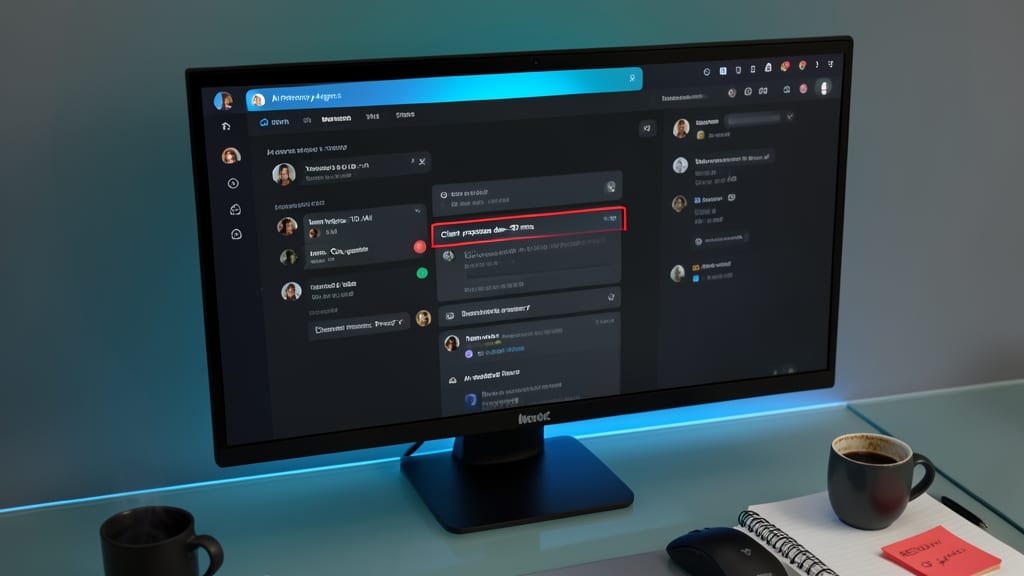
Tired of drowning in notifications while urgent tasks slip through the cracks? Microsoft Teams’ new AI-Powered Priority Alerts learns your workflow habits to surface only the most critical reminders—no manual tagging required.
The AI analyzes your activity patterns (like message frequency, meeting participation, and task completion history) to assign priority levels to reminders. For example, if you consistently miss deadlines tied to a specific channel, the system will flag those tasks first. You can also train the AI by marking reminders as "high priority" or "completed" to refine its suggestions over time. The feature integrates with existing reminders, ensuring no task gets buried.
Perfect for busy managers or remote teams juggling multiple projects, this tool cuts through the noise by focusing on what truly demands your attention—all while keeping your inbox clutter-free. ✨
Recurring Team Check-Ins
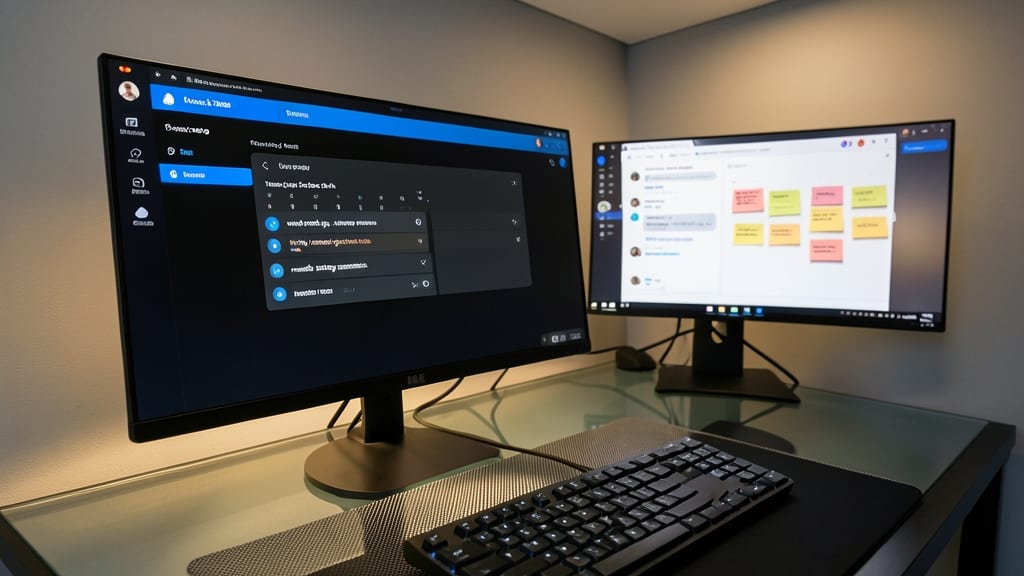
Struggling to keep remote teams aligned without endless calendar invites? Microsoft Teams now lets you set recurring team check-ins with just a few clicks—no manual scheduling required.
Create weekly stand-ups, biweekly sprint reviews, or monthly strategy sessions by selecting a frequency (daily, weekly, monthly) and adding team members directly from the reminder tool. The system automatically handles rescheduling for time zone changes or conflicts, and you can even attach a pre-written agenda template to keep discussions focused. For teams spread across time zones, the flexible scheduling ensures everyone gets notified at their optimal time.
This feature shines for distributed teams managing ongoing projects, where consistency is key but manual coordination feels like a chore. No more forgotten meetings or last-minute scrambles—just reliable syncs that keep everyone in sync. ✨
Integrated Outlook Task Sync
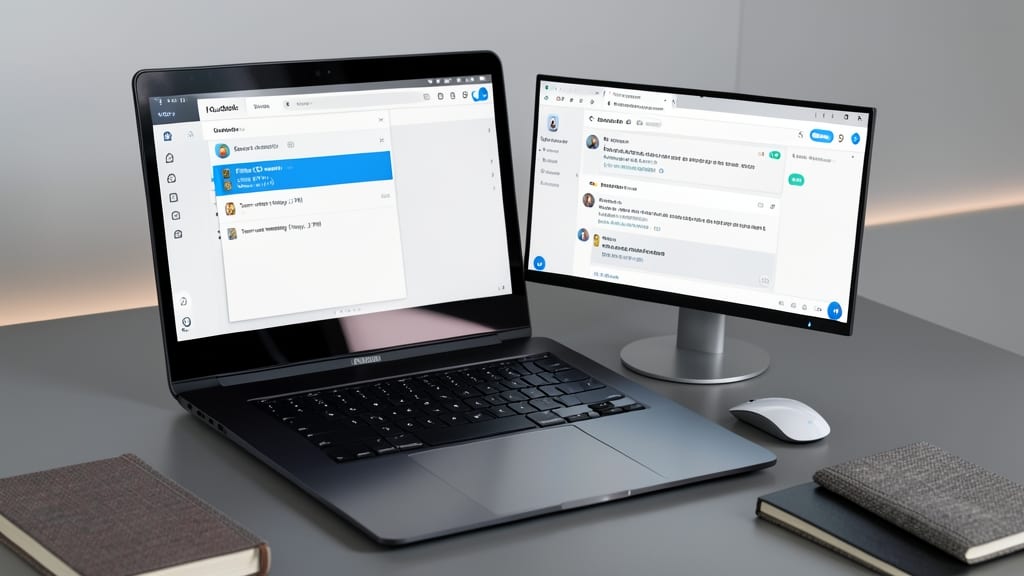
Tired of juggling separate to-do lists in Outlook and Teams? The Integrated Outlook Task Sync feature bridges the gap by automatically syncing reminders between both platforms. No more double-checking your calendar or missing deadlines buried in a chat thread—your tasks now appear in both apps in real time.
Here’s how it works: Create a reminder in Outlook Calendar or Tasks, and it instantly appears in your Teams activity feed and vice versa. The sync supports recurring deadlines, priority labels, and even assignees (if shared with your team). Best of all, it’s zero-config—just enable the integration in your Microsoft 365 settings, and the magic happens automatically.
Perfect for professionals who rely on both Outlook for email tasks and Teams for collaborative projects, this feature ensures nothing slips through the cracks. No more context-switching—your reminders stay in sync, no matter where you’re working. ✨
Visual Progress Trackers
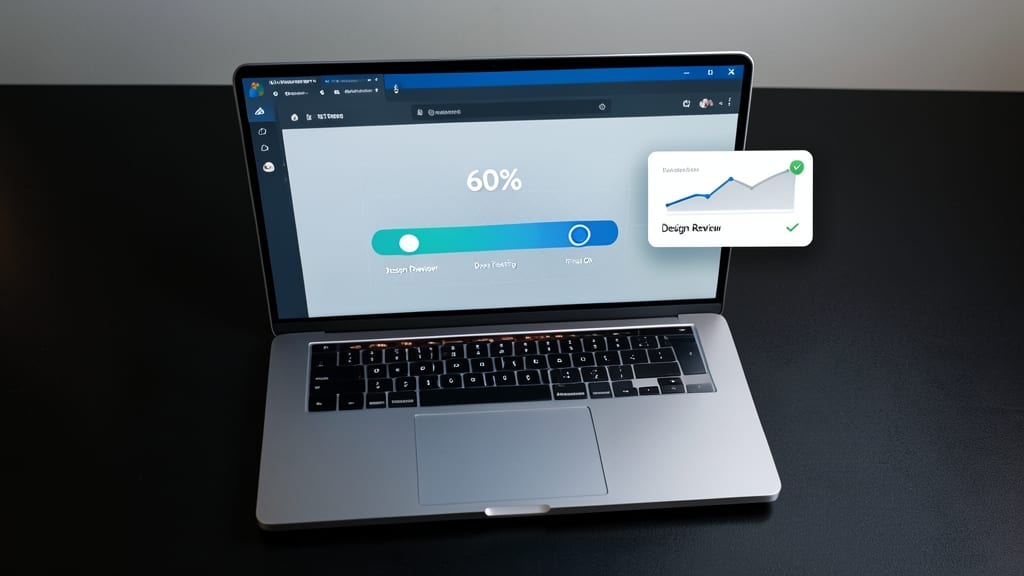
Tired of guessing whether your team’s project is on track? Microsoft Teams now lets you add visual progress bars directly to reminders, turning vague deadlines into clear, real-time updates. These dynamic trackers show completion percentages and milestone markers, so everyone sees exactly where tasks stand at a glance.
With just a few clicks, you can set up color-coded progress indicators that update automatically as tasks move forward. For example, a 75% complete task will show a vibrant green bar, while overdue items trigger bold red alerts. The feature also integrates with existing reminders, so no extra setup is needed—just drag a progress slider or check off subtasks to keep everyone aligned.
Perfect for project managers or cross-functional teams, this visual tool eliminates the back-and-forth of status updates while keeping motivation high. Watch your team’s productivity soar when progress is visible for all. ✨
Customizable Reminder Notifications
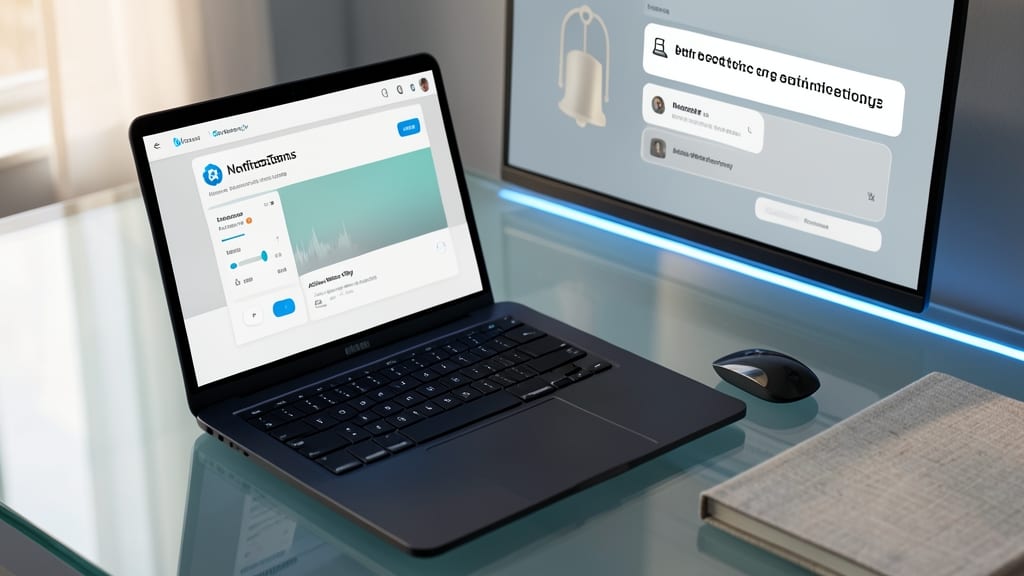
Tired of jarring reminder tones disrupting your flow? Microsoft Teams now lets you design notifications to fit your rhythm—choosing between subtle chimes, text pop-ups, or even silent banners that appear only when you’re active.
Dive into the notification settings menu (gear icon > Notifications) to tweak delivery timing (e.g., only during focus hours) and visual styles (dark mode, high-contrast alerts). For developers or creatives, you can even assign custom tones via third-party apps like Spotify for context-aware alerts (e.g., a piano melody for creative tasks).
Perfect for freelancers juggling multiple roles or teams needing minimal disruptions—this feature turns reminders from interruptions into seamless cues for your next step. ✨
Shared Team Reminder Boards
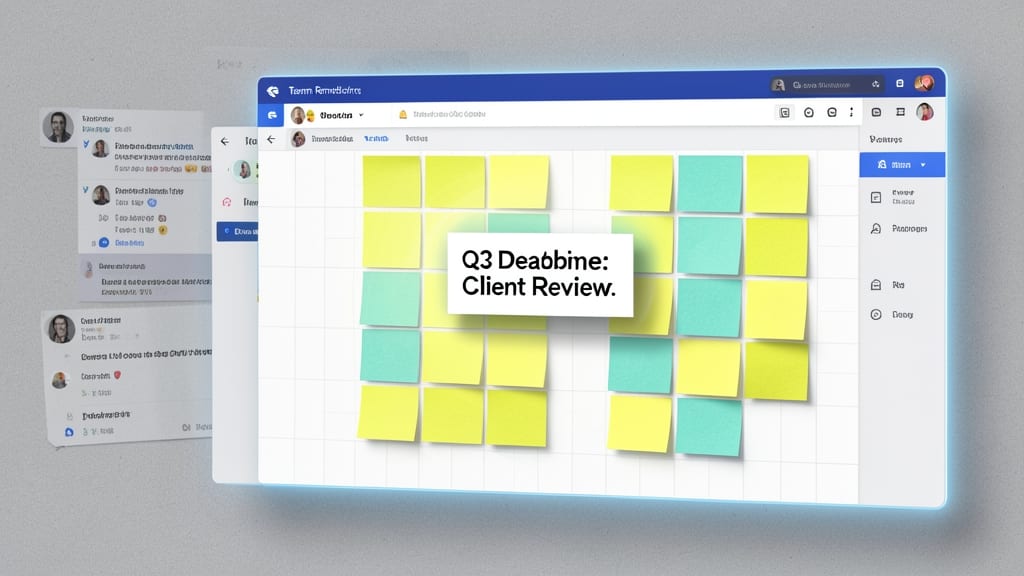
Tired of scattered reminders buried in chats or lost in emails? Shared Team Reminder Boards in Teams bring all your team’s goals into one collaborative, visual workspace—right inside your channel.
Pin a digital board to track deadlines, milestones, or action items with drag-and-drop sticky notes, color-coded priorities, and real-time updates. Teams automatically syncs changes, so everyone sees the latest progress without version confusion. Assign owners, add due dates, and even embed files—all while keeping discussions in the channel comments.
Perfect for project teams, marketing squads, or any group juggling shared deadlines. No more missed updates or "did we do that?" moments—just one source of truth your whole team can trust. ✨
Voice-Activated Reminders
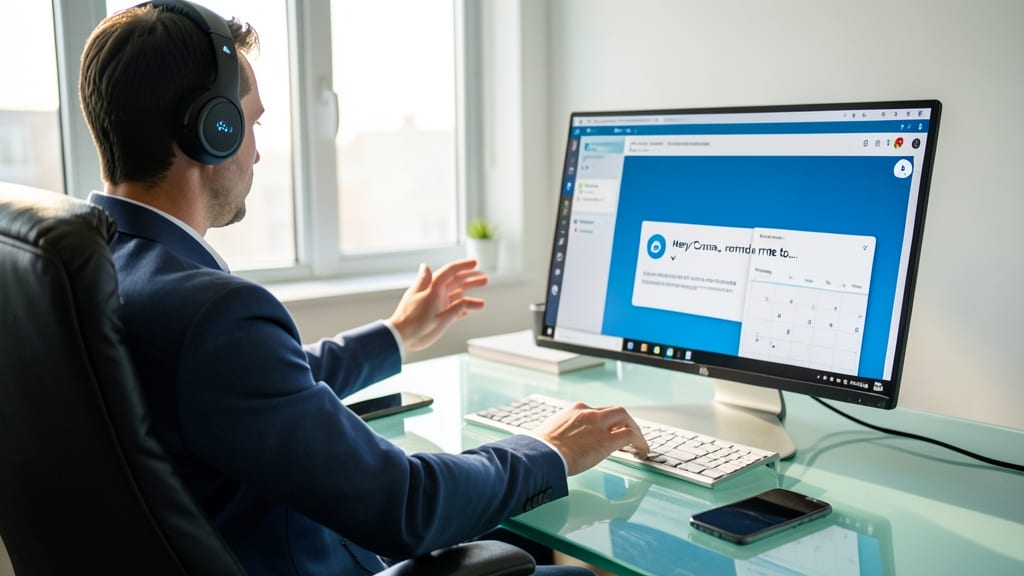
Tired of fumbling with your phone or keyboard to set reminders while multitasking? Voice-activated reminders in Teams let you dictate tasks hands-free using Cortana or Microsoft Edge’s voice assistant, perfect for professionals juggling meetings, calls, and deadlines.
Simply say, "Hey Cortana, remind me to finalize the Q3 report by Friday at 3 PM" while walking to your next meeting, and Teams will create the reminder instantly. Works seamlessly with Teams desktop/mobile and Edge browser, syncing across devices. No typing, no clicks—just natural language.
Ideal for sales reps on the road, managers in back-to-back meetings, or anyone who hates breaking workflows to set reminders. ⚡
Cross-Platform Reminder Sync
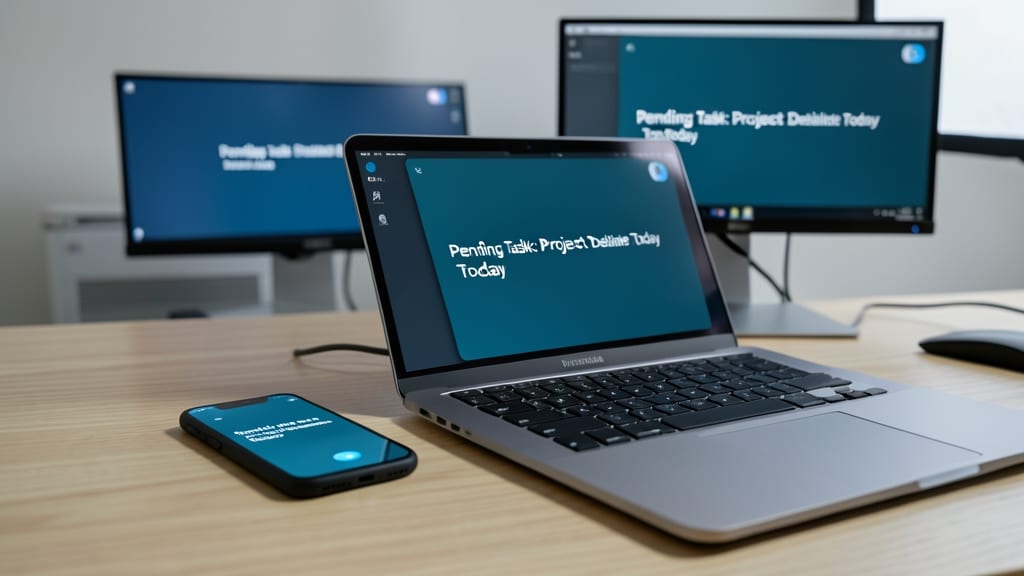
Tired of juggling reminders across different devices? Microsoft Teams now syncs reminders instantly across desktop, mobile, and web—so you can start a task on your phone and pick it up seamlessly on your laptop.
The feature ensures real-time updates to reminders, deadlines, and task statuses, regardless of whether you're using Windows, macOS, iOS, or Android. No more missed deadlines because you switched devices—Teams keeps everything aligned with zero manual syncing. The unified interface also lets you edit or mark tasks complete from any device, ensuring your workflow stays uninterrupted.
Perfect for professionals who switch between devices throughout the day, like remote workers, sales teams, or anyone managing tasks on the go. ⚡