
Software
Microsoft Edge is packed with hidden features designed to make your browsing faster, safer, and more efficient. These seven pro tips will transform your daily internet experience—from speeding up page loads to automating repetitive tasks—so you can work smarter, not harder.
Enable Immersive Reader for Focused Reading
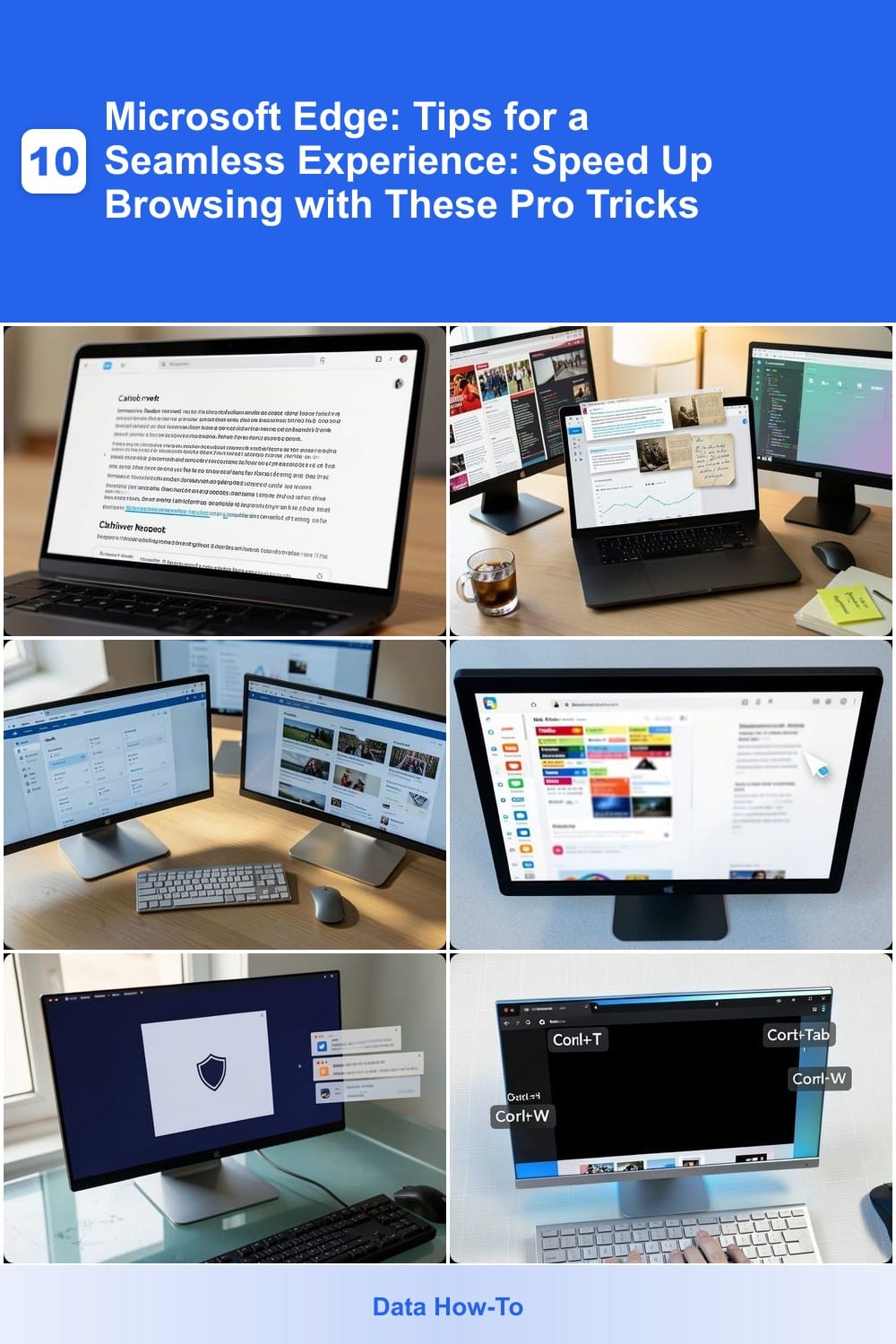
Drowning in dense articles or research papers? Microsoft Edge’s Immersive Reader transforms chaotic web pages into distraction-free reading zones. With a single click, it strips away ads, links, and clutter, leaving only clean, high-contrast text optimized for focus.
This feature includes text-to-speech for hands-free reading, dyslexia-friendly fonts (like OpenDyslexic), and adjustable line spacing. It even highlights syllables and parts of speech for deeper comprehension. Perfect for students, writers, or anyone who struggles with digital eye strain.
Enable it instantly via the Reader View icon (or Ctrl+Shift+R) on any webpage. Ideal for late-night study sessions or when you need to absorb complex content without interruptions. ✨
Use Collections to Organize Research Instantly
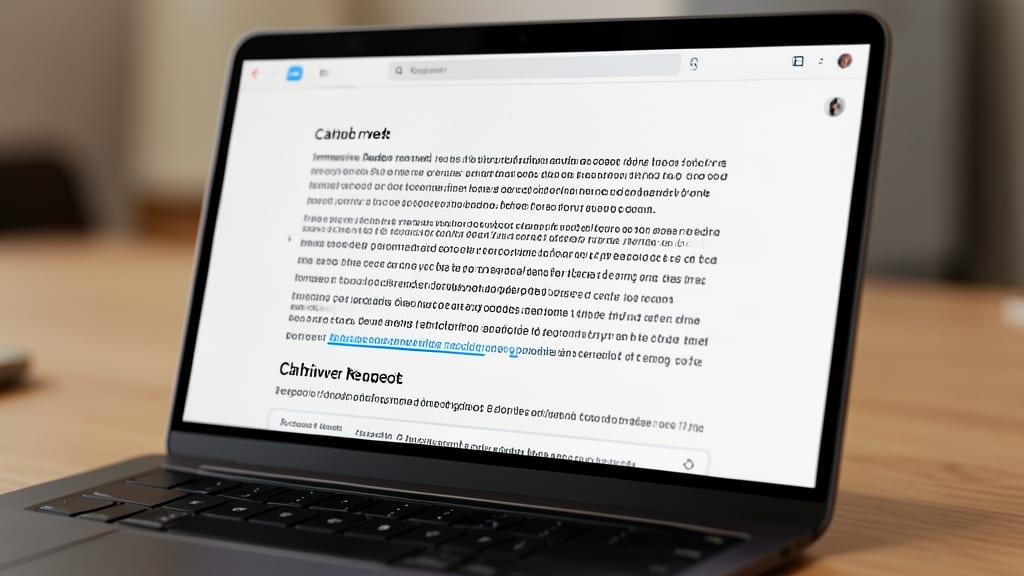
Drowning in open tabs while researching? Microsoft Edge’s Collections feature turns chaos into clarity by letting you clip text, images, and notes into a single, searchable workspace. Unlike bookmarks or sticky notes, Collections preserve context—highlighted passages stay linked to their source, and annotations remain visible even when the original page disappears.
To start, simply right-click any text or image on a webpage and select "Add to new collection"—or use the Ctrl+Shift+S shortcut for instant clipping. Collections support tags, sticky notes, and even PDFs, making it easy to categorize research by topic or project. Share your collections via a link, or export them to Word or OneNote for seamless collaboration.
This is a game-changer for students writing papers, professionals compiling reports, or anyone who’s ever lost a crucial piece of information buried in a tab. Try it next time you’re juggling sources—your future self will thank you. ✨
Customize Edge with Workspaces for Productivity
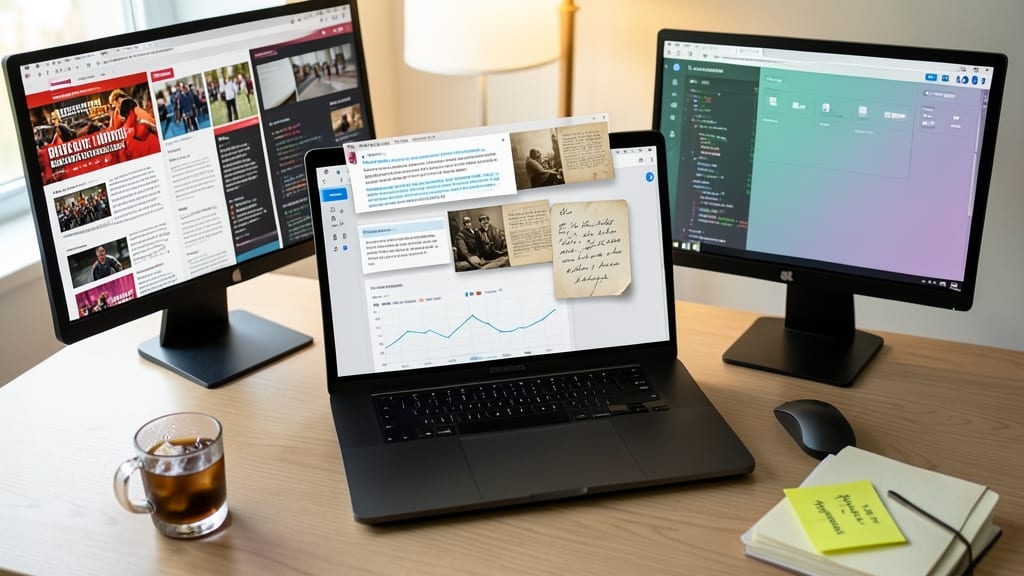
Tired of juggling work tabs with personal browsing, only to accidentally click the wrong link? Microsoft Edge’s Workspaces lets you create separate browser zones—each with its own tabs, extensions, and settings—so your priorities never collide. It’s like having multiple browsers in one, but with zero extra software.
Create custom Workspaces for projects, shopping, or personal use, and assign specific extensions to each (e.g., Grammarly for work, Honey for deals). The feature syncs across devices, so your dedicated "Work" space follows you from laptop to tablet. Switching between them is as simple as clicking a tab—no more cluttered history or misplaced bookmarks.
Perfect for freelancers, students, or anyone who needs to compartmentalize digital life. Give it a try and reclaim focus without the chaos. ✨
Speed Up Browsing with Vertical Tabs
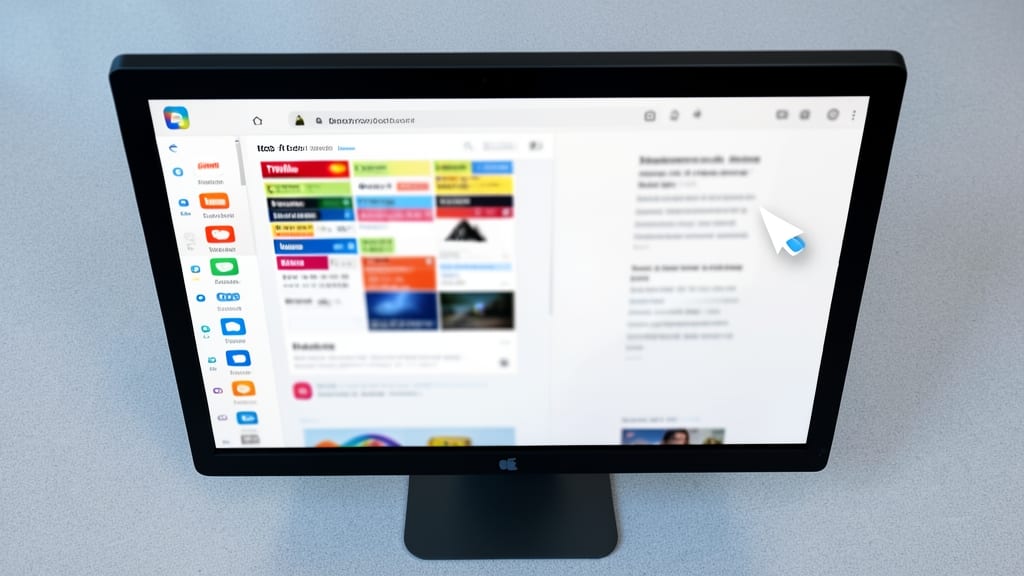
Tired of your browser tab bar turning into a chaotic mess of open windows? Microsoft Edge’s vertical tabs feature lets you stack tabs neatly along the left sidebar, freeing up precious screen space while keeping everything just a click away.
With a simple toggle in Edge’s settings, you can switch between horizontal and vertical layouts—ideal for widescreen monitors or multi-monitor setups. The feature even includes live thumbnails for quick visual identification, and you can drag tabs to rearrange them effortlessly. Best of all, it syncs across devices if you’re signed into your Microsoft account.
This is a game-changer for power users, developers, or anyone juggling research, work, and personal tasks—no more squinting at tiny tab previews or wasting time scrolling. Try it today and reclaim your desktop real estate! ✨
Block Distractions with Focus Mode
Struggling to focus during deep work sessions? Microsoft Edge’s Focus Mode is your digital fortress against distractions. When activated, it locks your browser into full-screen mode while silently blocking access to predefined distracting sites—like social media or news—until you’re ready to exit.
To set it up, open Edge’s three-dot menu, select Focus Mode, and choose which sites to block. You can even set a custom timer (e.g., 25 or 90 minutes) to enforce your work sprints. The mode also hides all tabs except the one you’re working on, creating a zero-configuration distraction-free zone. No extensions or third-party tools needed!
This is perfect for writers, developers, or anyone who needs uninterrupted focus. Try it during your next coding session or writing marathon—your productivity will thank you. ✨
Automate Tasks with Edge Shortcuts
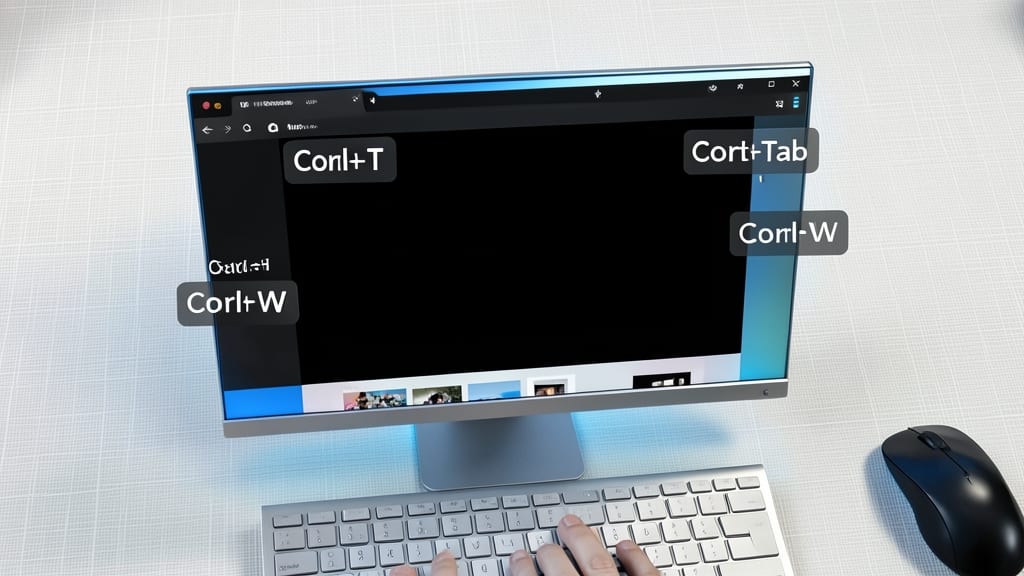
If you spend hours clicking through tabs or resizing windows, Microsoft Edge’s hidden keyboard shortcuts can cut your workflow time in half. These underrated commands let you navigate faster than ever—no mouse required.
Memorize Ctrl+T to open a new tab instantly, Ctrl+Tab to cycle through open tabs, or Ctrl+Shift+T to revive closed tabs. For power users, Win+Left/Right snaps windows to half-screen—perfect for comparing docs or coding side-by-side. Even better, these shortcuts work across Windows, Mac, and Linux versions of Edge.
Developers, writers, and multitaskers will love how these shortcuts eliminate repetitive clicks. Try them today and reclaim your focus! ⚡
Sync Settings Across Devices Seamlessly
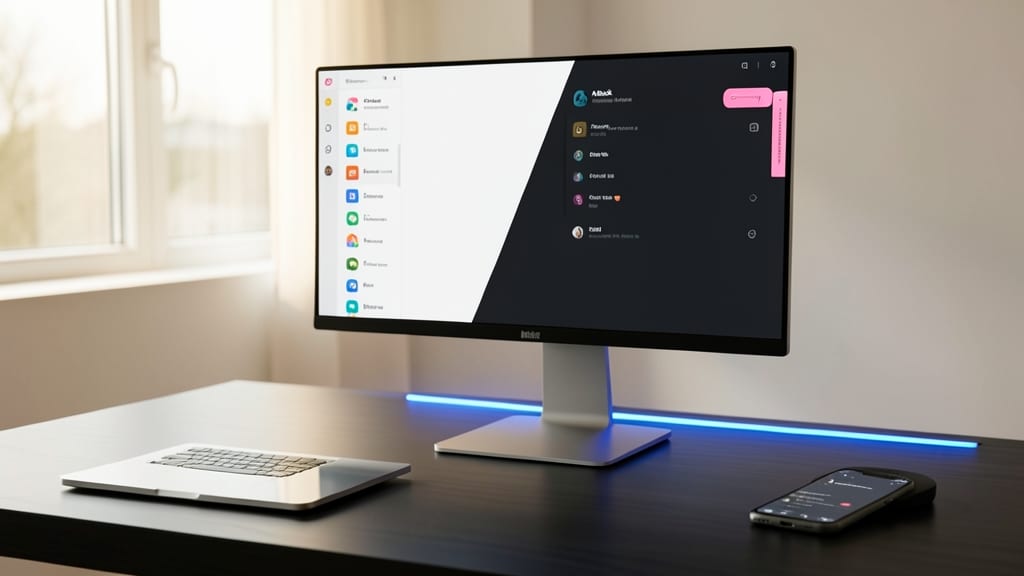
Tired of logging into every device just to find your bookmarks or extensions? Microsoft Edge’s cross-platform sync eliminates that hassle by keeping your browsing experience identical across Windows, macOS, iOS, and Android—no manual setup required.
With Microsoft account integration, your bookmarks, extensions, open tabs, and even browsing history stay in sync in real-time. The feature also supports password autofill and favorites bar customization, so you’ll never waste time reconciling settings. Plus, you can selectively sync data (e.g., only bookmarks) to balance convenience and privacy.
This is a game-changer for remote workers, students, or anyone juggling multiple devices. Whether you’re switching from your Windows PC to your iPhone, your workflow stays seamless—no context lost. ✨