
Tip & Trick
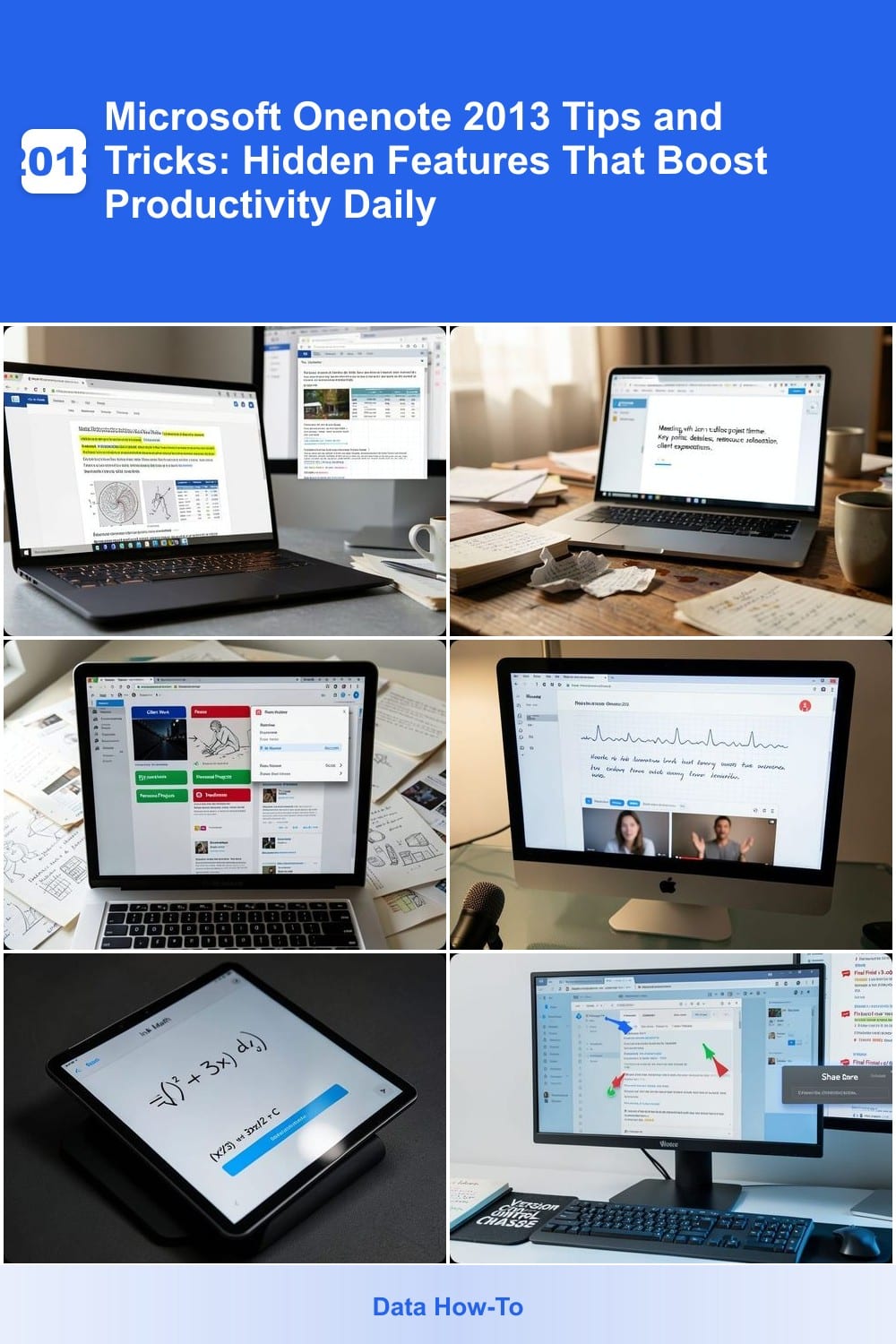
Microsoft OneNote 2013 remains a powerhouse for note-taking, yet many users overlook its most powerful features. These seven hidden tricks will transform how you organize ideas, collaborate, and streamline workflows—saving you hours weekly.
Quick Capture with OneNote Clipper Browser Extension
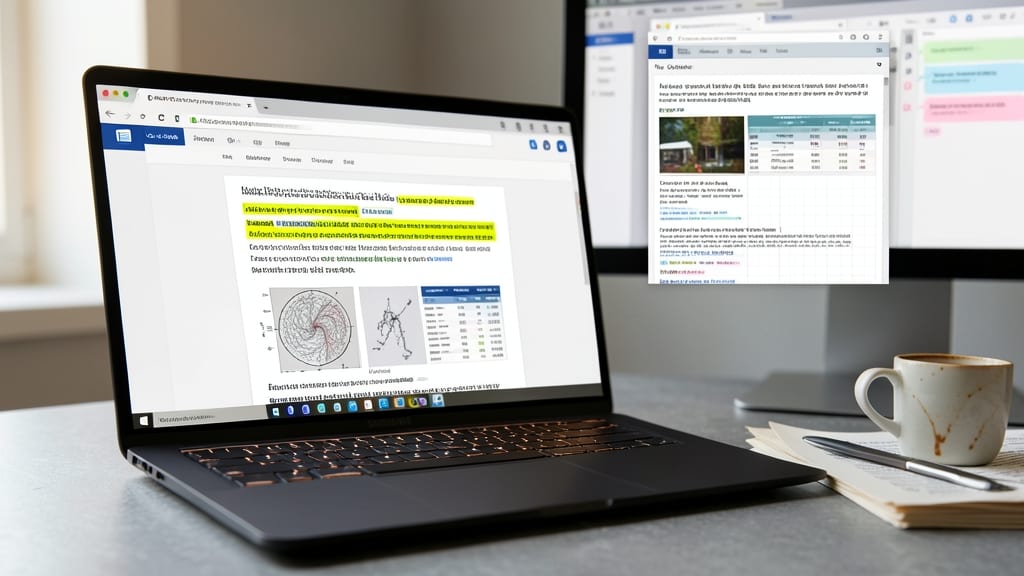
Researchers, students, and professionals who spend hours compiling reference materials will love OneNote Clipper—a browser extension that lets you save entire web pages, screenshots, or highlighted text directly into OneNote without leaving your browser. No more copy-pasting or juggling tabs; just click, capture, and organize in seconds.
The extension integrates seamlessly with Chrome, Firefox, and Edge, offering one-click options to save full pages, selected text, or even screenshots. You can assign saved content to specific OneNote sections (like "Research" or "Client Notes") and add tags for easy retrieval later. The best part? It works offline too, so you can capture content even when your internet drops.
Perfect for academics compiling sources, marketers curating inspiration, or developers saving code snippets—this tool turns your browser into a digital clipboard for OneNote. ⚡
Handwriting to Text Conversion for Notes

Tired of digging through stacks of messy handwritten notes only to realize you can’t read your own scribbles? OneNote 2013’s built-in OCR (Optical Character Recognition) turns your scrawls into searchable, editable text with just a few clicks—no third-party tools required.
Simply draw or type text into OneNote, then right-click and select Copy Text from Picture (or use the Draw > Ink to Text tool). The software converts handwritten words, equations, or bullet points into clean, selectable text—even from PDFs or scanned images you’ve imported. For sketch-heavy notes, use the Draw tab to annotate directly over images before extracting text. The accuracy handles print, cursive, and mathematical symbols, making it ideal for meeting minutes, brainstorming sessions, or lecture notes.
This trick is a lifesaver for students transcribing notes, professionals digitizing meeting minutes, or creatives preserving sketches—all while keeping your original handwriting intact. No more lost ideas buried in illegible scribbles! ✨
Section Tabs for Organizing Large Notebooks

Drowning in a sea of digital pages? OneNote 2013’s section tabs turn chaos into clarity with a single click. Right-click any notebook section to rename or recolor tabs—assigning blue to client work, green to personal projects, or red for deadlines. This visual hierarchy lets you spot key sections instantly, even with hundreds of pages packed into one notebook.
Pro tip: Use the tab color picker to match your workflow’s needs—marketing teams might use orange for campaigns, while developers could reserve purple for code snippets. The drag-and-drop reordering keeps your most active sections front-and-center, while the search bar still works across all colored tabs for quick lookups. No more flipping through endless pages to find that one critical note!
This trick is a game-changer for freelancers juggling multiple clients, students tracking research projects, or project managers coordinating team deliverables. With tabs, your notes go from overwhelming to effortlessly organized. ✨
Audio and Video Recording Directly in Notes
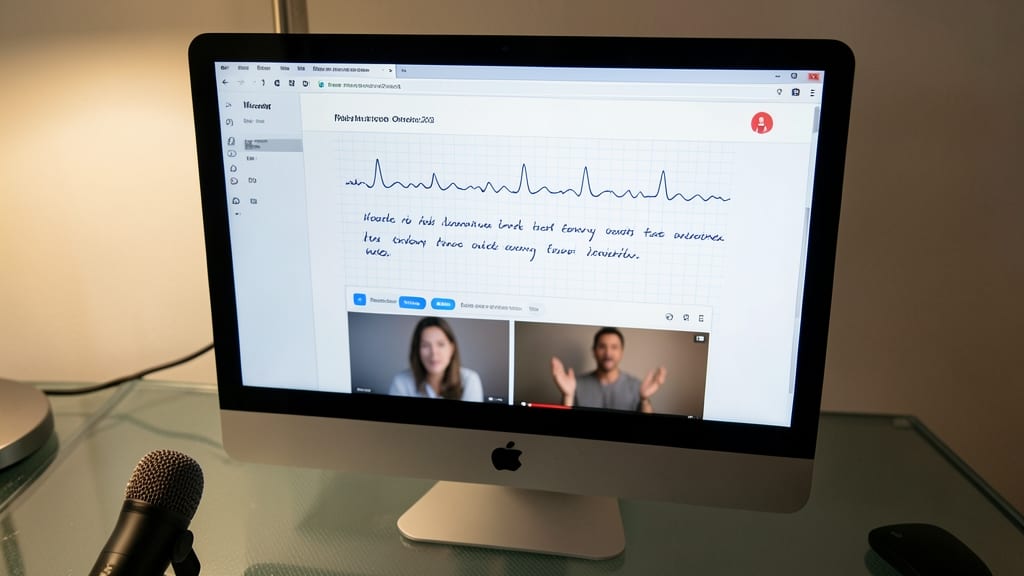
Forget typing when your thoughts flow faster than your fingers—OneNote 2013 lets you record audio or video directly into your notes with just a click. This hidden feature transforms your notebook into a multimedia hub, perfect for capturing impromptu brainstorms, client interviews, or even screen recordings of technical demos.
To start, simply open a new page and click the audio or video recording button in the ribbon (look under the Insert tab). Record your voice memo or screen activity, and OneNote embeds it as a playable media file—no extra software needed. The recordings sync with your notes, so you can later search the transcription (for audio) or revisit key moments without scrolling through pages. Best of all, it works seamlessly with OneNote’s search function, letting you find recorded content alongside typed notes.
This trick is a game-changer for interviewers, developers debugging live, or anyone who needs to preserve spontaneous ideas. Try it next time you’re in a meeting or brainstorming session—your future self will thank you. 💻
Math Equation Solver with Ink
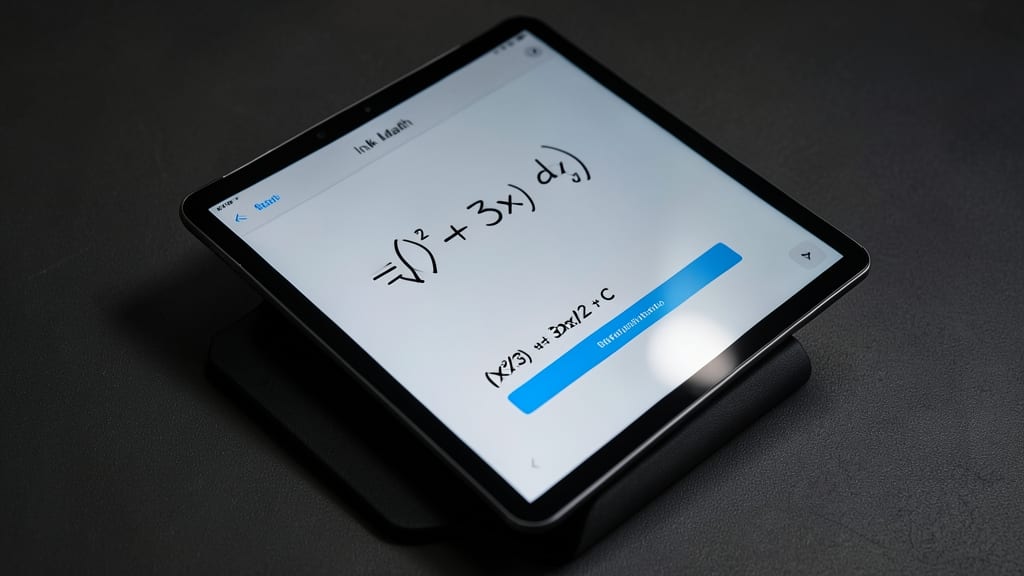
Forget fumbling with calculators or typing equations into separate apps—OneNote 2013’s Ink Math feature lets you scribble equations by hand and get instant solutions. Whether it’s calculus homework, engineering formulas, or quick financial calculations, this tool turns your tablet or touchscreen into a digital chalkboard with computational power.
The magic happens when you write an equation using the OneNote Ink Math tool (accessed via the Draw tab > Ink Math). As you write, OneNote recognizes symbols, converts them to digital format, and even solves them—showing step-by-step results. It supports fractions, integrals, matrices, and basic algebra, making it a lifesaver for students and professionals alike. You can also edit the equation later and re-solve it with updated values.
This is the perfect tool for students cramming for exams, engineers sketching designs, or anyone who prefers handwriting over typing. No extra software needed—just your stylus and OneNote. ✨
Shared Notebooks for Team Collaboration
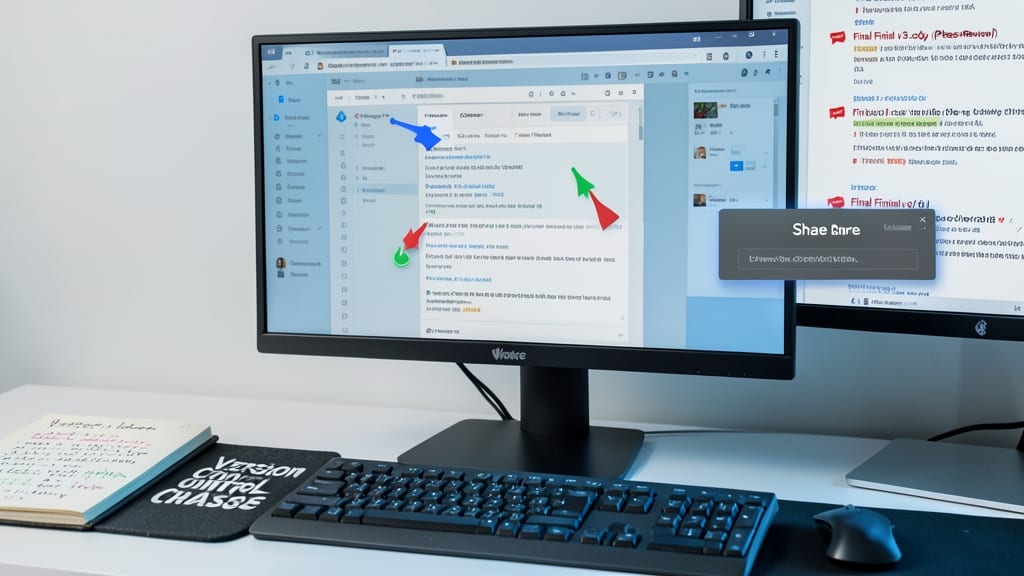
Tired of email threads derailing your group projects? OneNote 2013’s shared notebooks let teams edit the same document simultaneously—no version conflicts, no "finalfinalv3.docx" chaos. Simply right-click your notebook, select Share, and invite collaborators via email, where they’ll see changes in real-time with color-coded cursors.
This feature supports up to 200 collaborators (ideal for classrooms or small businesses) and integrates seamlessly with Microsoft Outlook for easy distribution. Need to track edits? Enable version history to revert to earlier saves—perfect for brainstorming sessions where ideas evolve rapidly. The commenting tool lets team members leave feedback directly on pages without cluttering the main workspace.
Perfect for remote teams, student study groups, or client presentations, shared notebooks replace cumbersome file-sharing with a single, always-updated source of truth. ⚡
Tagging and Searching with Keywords
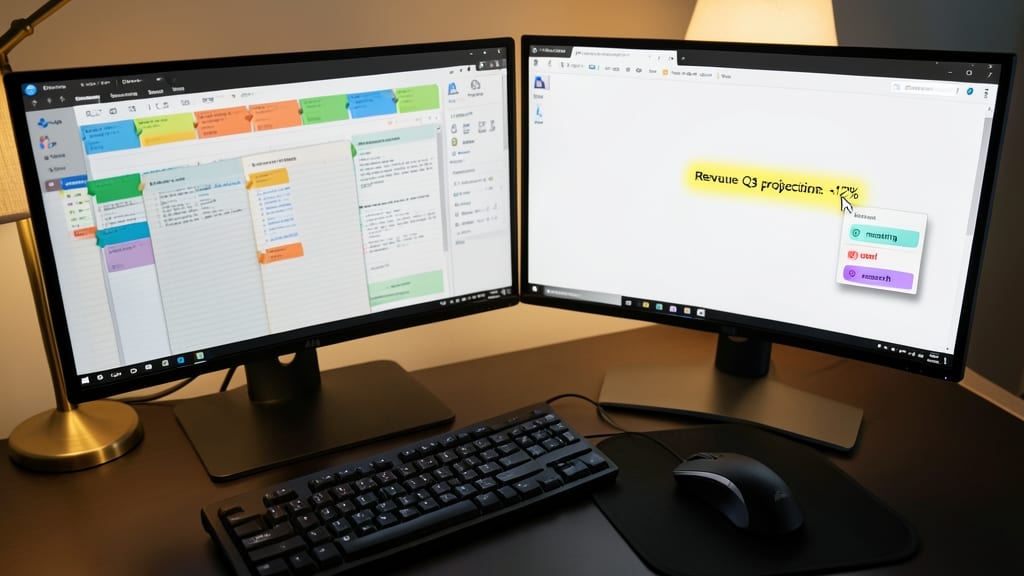
Drowning in pages of notes but can’t remember where you stashed that brilliant idea? OneNote 2013’s tagging system turns your notebook into a searchable database—no more endless scrolling. Simply highlight text, right-click, and assign custom tags like "@meeting," "urgent," or "research" to instantly categorize content.
Once tagged, use the search bar (Ctrl+E) to pull up every instance of a keyword across your entire notebook in seconds. Combine tags with keywords (e.g., "project X @client") for laser-focused results. The system even syncs with Outlook tasks, so deadlines tagged "@deadline" appear in your calendar automatically.
This trick is a game-changer for project managers, students, or anyone juggling multiple topics—like tracking client notes alongside personal research without mixing them up. ⚡