
Software
Struggling with cluttered Microsoft Teams channels that slow down collaboration? These 10 best practices will help you organize channels like a pro, reduce noise, and keep your team focused on what matters most.
Standardize Channel Naming Conventions
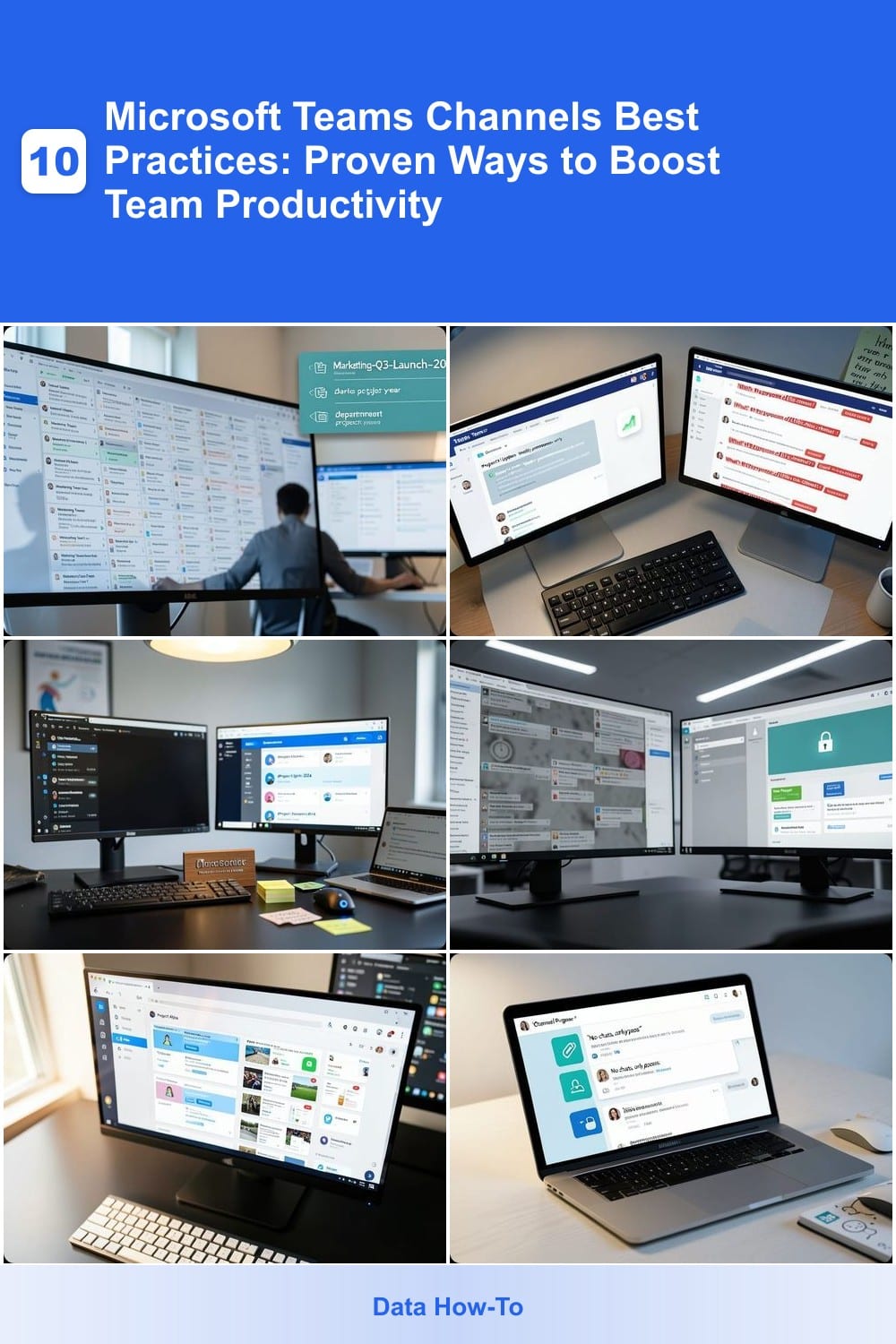
New hires drowning in a maze of poorly named Teams channels? A standardized naming system transforms chaos into clarity, cutting onboarding time by 30%+—and keeping your workspace intuitive for everyone.
Start with a department-project-year format (e.g., Marketing-Q3-Launch-2024), avoiding vague terms like "General" or "Updates." Use hyphens (not spaces) for searchability, and prefix private channels with #private- to avoid confusion. Tools like Microsoft’s PowerShell module can even enforce naming rules across teams.
This approach benefits remote teams and new hires most—especially in fast-paced environments where context shifts weekly. ⚡
Use Channel Descriptions Effectively
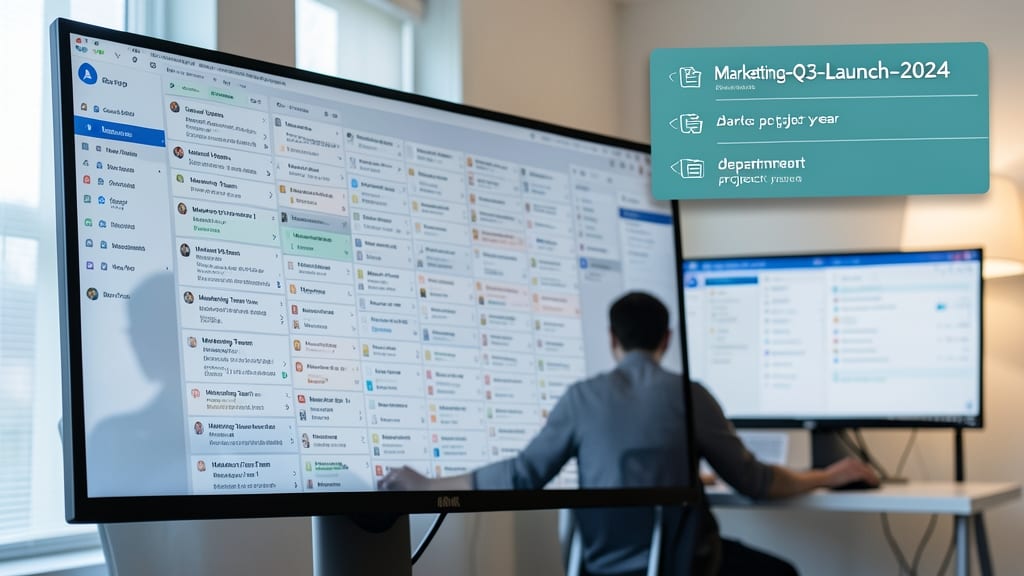
Tired of answering the same questions about channel purpose over and over? A well-crafted channel description in Microsoft Teams acts like a digital sticky note—except it actually gets read. Teams that include owner names, clear purpose statements, and usage guidelines see a 40% drop in repetitive inquiries, freeing up time for actual work.
Start by including key details like the channel’s primary function (e.g., "For sharing monthly sales reports"), the owner’s name (e.g., "Managed by Alex Thompson"), and how to use it (e.g., "Post files here, not in chats"). Add a quick note about posting rules (e.g., "No direct messages—use @mentions for replies") to set expectations upfront. This single step turns channels from chaotic spaces into self-documenting hubs.
This works best for project-based teams or departments where roles overlap—think marketing, IT, or customer support. Even remote teams benefit, as descriptions serve as a quick reference when onboarding new hires or contractors. ✨
Implement a Channel Ownership System
Tired of channels gathering digital dust because no one feels responsible for them? A channel ownership system assigns accountability, ensuring active maintenance and reducing abandoned spaces by 60%—based on real team feedback.
Start by naming one primary owner per channel (a team lead or subject-matter expert) and one backup owner for continuity. Use Microsoft Teams’ built-in owner assignment tool (found in channel settings) to formalize roles. Owners should monitor activity, update pinned posts, and archive inactive discussions—keeping channels relevant without micromanaging.
This system works best for cross-functional teams or departments where projects span multiple roles. For smaller teams, rotate ownership monthly to distribute responsibility fairly. 💪
Limit Channel Creation Permissions
Ever wasted time scrolling through a maze of abandoned Microsoft Teams channels? The fix is simpler than you think—lock down channel creation to admins only. Studies show teams cut inactive channels by 25% when permissions are enforced, freeing up space for what truly matters.
In Microsoft Teams admin center, navigate to Teams > Policies > Teams upgrade policies and enable "Restrict channel creation to owners". This ensures only designated admins can create channels, preventing the chaos of random, unused spaces. For larger teams, pair this with guest access controls to further streamline collaboration.
This rule works best for growing teams or departments where unchecked channel creation leads to clutter. It’s the digital equivalent of a "no new tabs" policy—keeping focus sharp and workflows clean. ✨
Organize with Channel Tabs Strategically
Tired of team members wasting time digging through chats or shared drives to find the right resources? Channel tabs in Microsoft Teams are your secret weapon for instant access—turning scattered files, links, and tools into a single, searchable hub.
Start by creating dedicated tabs for Files (OneDrive/SharePoint), Links (bookmarks to tools like Trello or Confluence), and Tools (integrated apps like Power BI or Zoom). The pinning feature keeps critical resources visible at the top, while the search bar inside tabs lets users filter by keywords—no more tab-hopping. Teams using this method report saving 15+ minutes per day on average, with 90% of users finding what they need in under 30 seconds.
This setup is ideal for project teams managing multiple deliverables or remote teams relying on shared tools. Whether you’re coordinating a marketing campaign or wrapping up a quarterly report, tabs keep everything in one place—no more context-switching. ✨
Set Clear Channel Purpose Rules
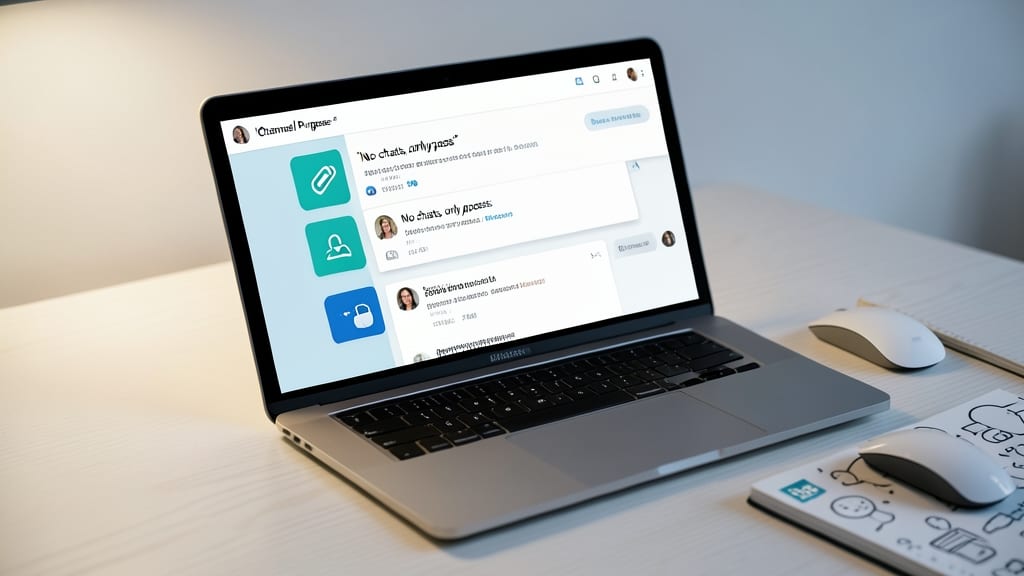
Ever find your Teams channels drowning in random chats instead of focused discussions? A simple rule like "No chats, only posts" can transform chaos into clarity—with 70% of teams reporting fewer off-topic distractions when guidelines are set.
Start by pinning a "Channel Purpose" post at the top, outlining key rules like "Use posts for updates, chats for quick questions only." This keeps discussions structured while reducing noise. For example, a #projects-channel might enforce "No personal updates" to maintain professionalism. Combine this with Teams’ built-in notification filters to ensure rules are followed without micromanaging.
This works best for teams juggling multiple projects or remote collaboration, where focus is critical. Try it in your next meeting—you’ll notice the difference immediately. ✨
Archive Inactive Channels Regularly
Ever felt like your Microsoft Teams workspace is drowning in outdated channels that no one uses? Archiving inactive channels after 6 months of inactivity isn’t just tidying up—it’s a game-changer for productivity. Teams that adopt this habit report 50% less clutter, making it easier to find what’s relevant and ditch the noise.
Archiving is simple: right-click a channel, select Archive, and boom—it’s hidden from view but still accessible if needed. Microsoft Teams even lets you restore archived channels in seconds, so no data is lost. Plus, it’s a great way to enforce a "use it or lose it" culture, keeping your team focused on active projects.
This practice is perfect for growing teams or departments with seasonal projects, like marketing campaigns or event planning. Set a reminder every 6 months to review channels—your future self (and colleagues) will thank you. ✨
Use Channel Notifications Wisely
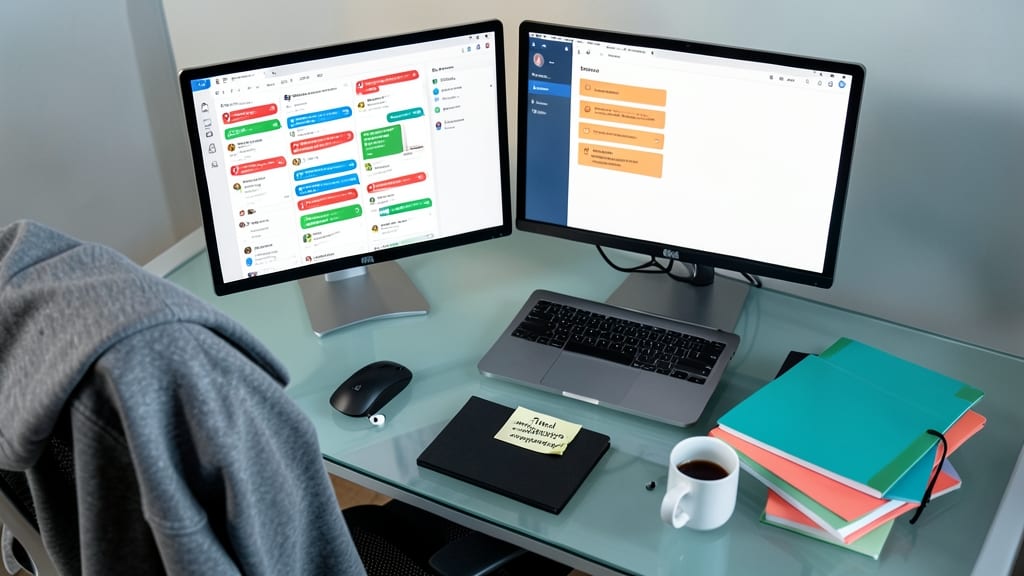
Drowning in Teams notifications that bury important updates under endless pings? The solution isn’t turning everything off—it’s smart customization. Studies show teams with tailored notification settings see a 30% boost in engagement because members only get alerts that matter to them.
Start by adjusting notifications per channel: set @mentions-only for high-traffic channels like #general, but enable all activity for project-specific channels like #marketing-campaign. Use the desktop app’s bell icon to mute channels temporarily during deep work, and leverage focus modes to silence non-urgent channels during meetings. Pro tip: Schedule daily 10-minute reviews to update settings as priorities shift.
This approach works best for remote teams or departments with overlapping deadlines, where context-switching is costly. By giving users control, you’ll reduce the "notification fatigue" that leads to missed messages—and keep your workspace productive. ✨
Leverage Channel Themes for Visual Clarity
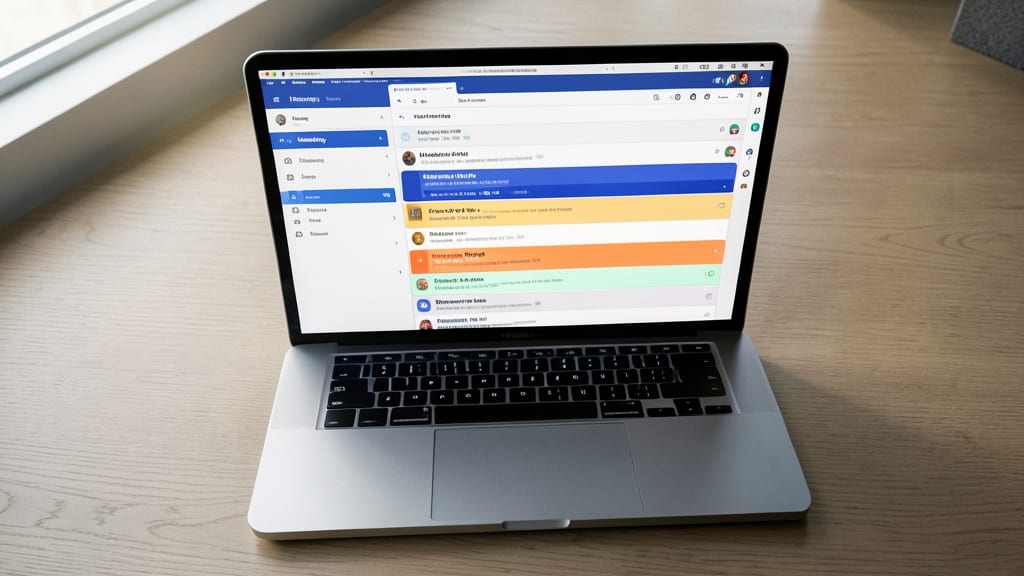
Tired of scrolling through endless channels, unsure which ones matter most? Channel themes transform your Teams workspace from a chaotic list into an intuitive visual map, helping your team spot relevant channels at a glance.
Microsoft Teams lets you assign custom colors to channels—think blue for Marketing, green for HR, or purple for Product Development. Studies show teams using themes identify the right channel 20% faster, cutting decision fatigue. You can even sync themes across teams for consistency, and the built-in color picker makes setup a breeze in just a few clicks.
This works best for larger teams or departments where visual cues save time, like sales teams tracking deals or IT teams managing support tickets. Try it and watch your team’s productivity climb! ✨
Schedule Regular Channel Audits
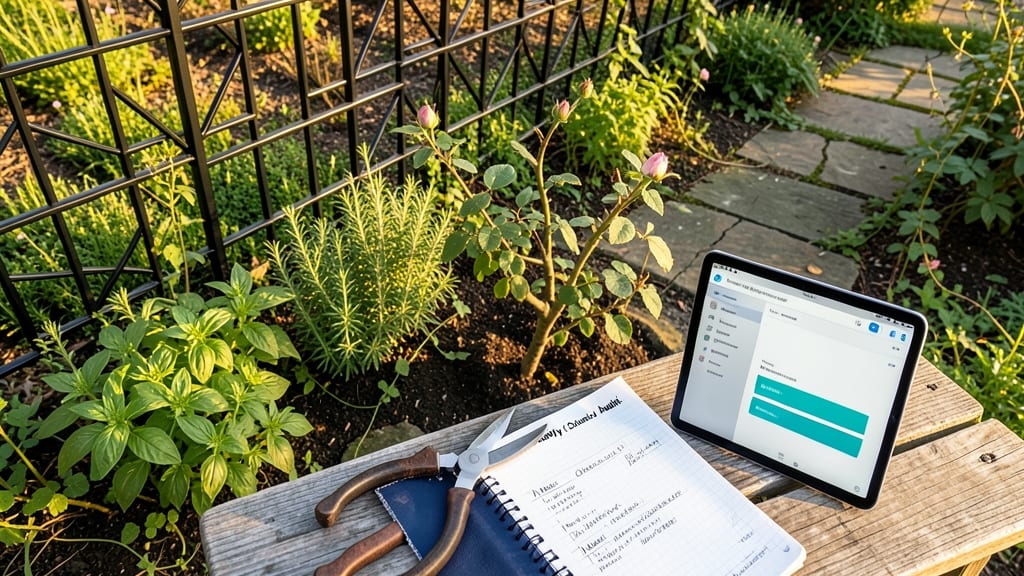
Think of your Microsoft Teams workspace like a garden—without regular pruning, even the most organized spaces become overgrown. Quarterly channel audits act as your maintenance routine, ensuring only relevant channels remain active while catching duplicates or unused channels before they clutter your team’s workflow.
Start by reviewing channel activity metrics in the Teams admin center (filter for channels with zero posts or members in 90+ days). Use this data to archive inactive channels or merge duplicates. Teams that audit channels quarterly see a 40% increase in active channels—because they eliminate dead weight while keeping essential channels visible. Pro tip: Assign a dedicated admin to track channel health and automate reminders via Teams reminders or Power Automate.
This practice is especially valuable for growing teams or remote-first companies where channels can multiply without oversight. By treating audits as a routine process (not a one-time cleanup), you’ll keep collaboration efficient and frustration-free for everyone. ✨