
Tip & Trick
Remote work offers flexibility but exposes you to cyber threats like phishing, malware, and data breaches. These 10 security best practices will help you create an impenetrable digital fortress—no technical expertise required.
Zero-Trust Network Access for All Devices
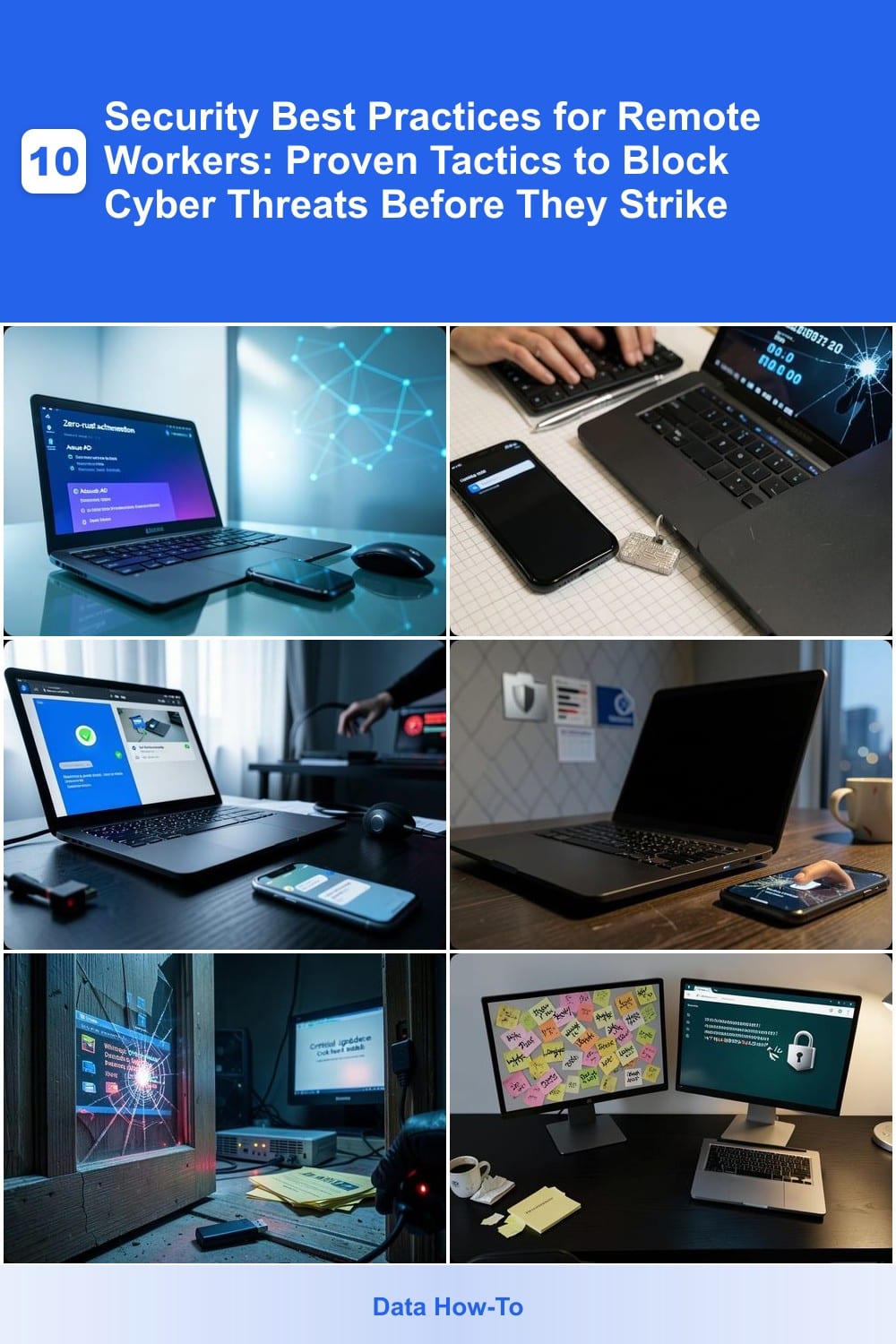
Tired of assuming your devices are "safe enough" just because they’re on your network? Zero-trust network access flips that script by treating every access request—whether from a work laptop or your personal phone—as a potential threat until proven otherwise.
With solutions like Microsoft Azure AD Conditional Access or Cisco Duo, you enforce real-time verification (biometrics, hardware tokens, or one-time passwords) before granting access to apps or data. This approach blocks lateral movement attacks—where hackers exploit weak internal trust—by ensuring no implicit permissions exist. Even if your device gets compromised, unauthorized access is immediately denied. 💻
This is non-negotiable for hybrid workforces juggling personal and company devices. Whether you’re switching between a coffee shop Wi-Fi and your home network, zero-trust ensures your data stays locked down—no exceptions. ✨
Multi-Factor Authentication for Every Account
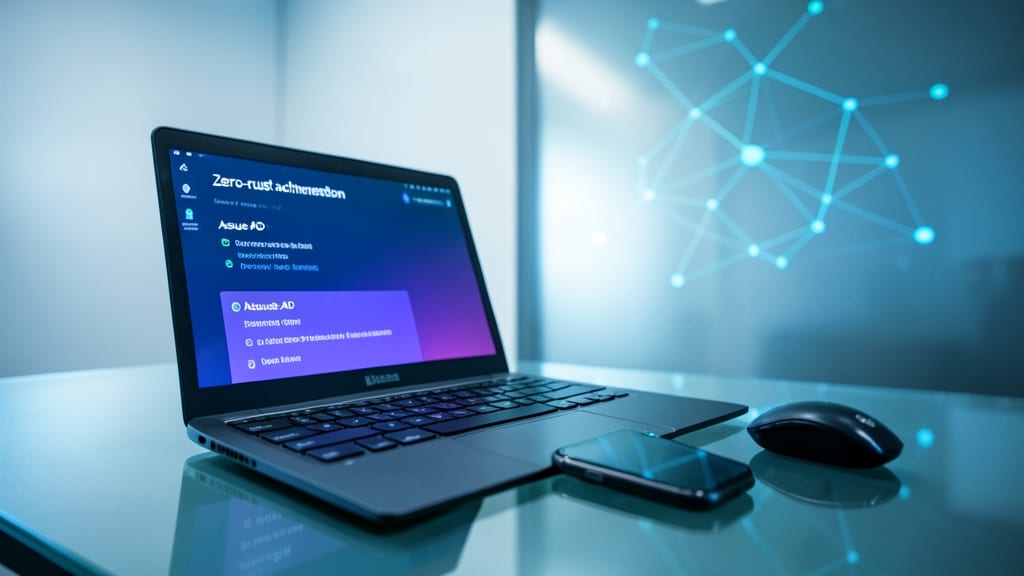
Credential stuffing attacks are the #1 way hackers gain access to work accounts—yet many remote workers still rely solely on passwords. Multi-Factor Authentication (MFA) adds an extra layer of defense by requiring a second verification step, making unauthorized access nearly impossible even if your password is compromised.
Most modern platforms support TOTP (time-based codes), push notifications, or biometric verification like fingerprint scans. For example, Microsoft Authenticator offers seamless integration with Office 365, while Google Authenticator works across 90% of services. Even free options like Duo Security provide enterprise-grade protection without complexity.
This is non-negotiable for anyone handling email, VPNs, or cloud services—especially if you reuse passwords. Enable MFA in under 5 minutes and watch your account security transform. ✨
Encrypted Communication Channels Only
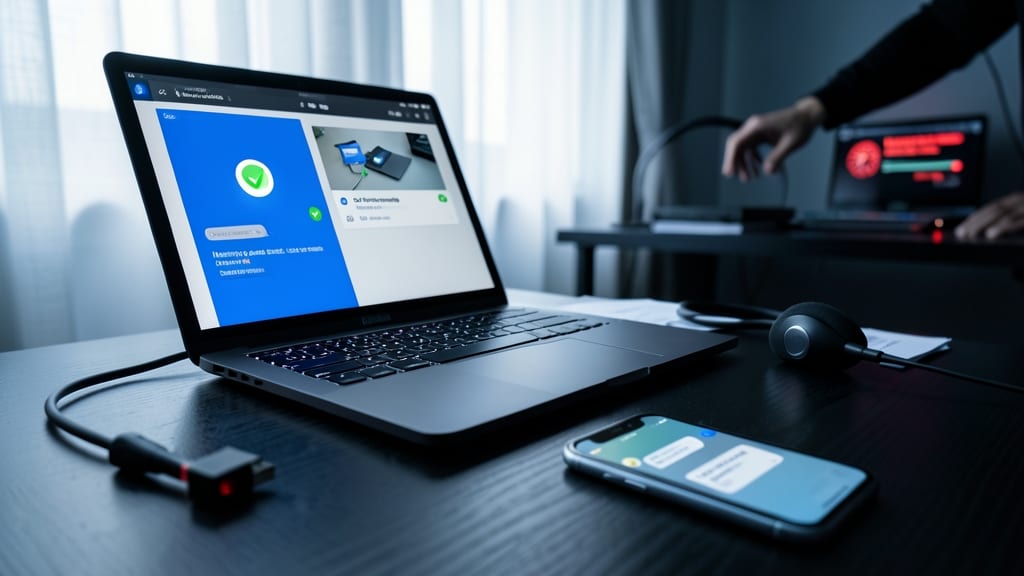
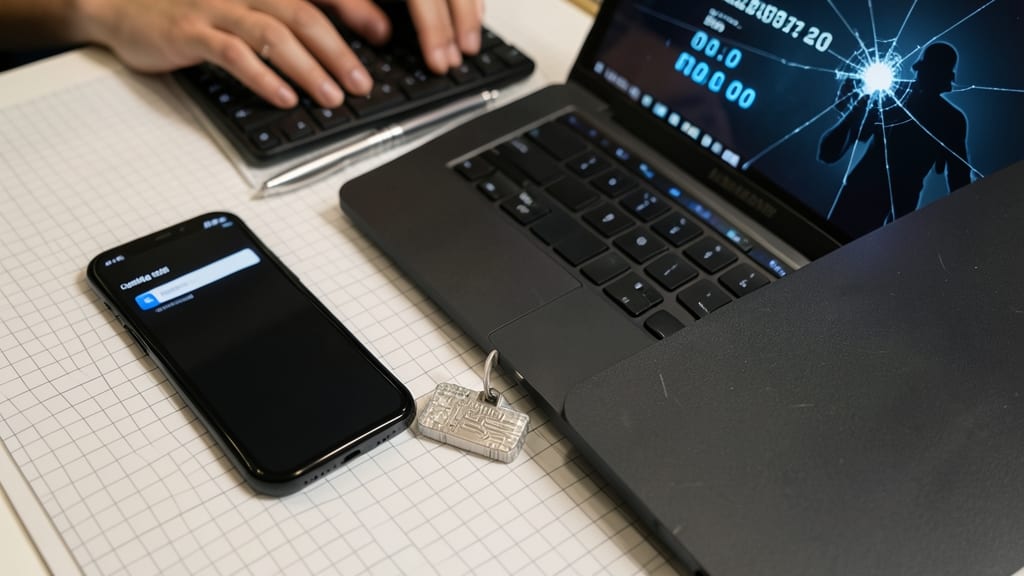
Ever sent a work message that you’d later regret—if only someone hadn’t intercepted it? End-to-end encryption ensures your chats, calls, and files stay private, even if your device is compromised. Tools like Signal (with its open-source verification system) and Microsoft Teams Private Channels (which encrypts meetings by default) turn your conversations into digital vaults.
Signal’s disappearing messages and self-destructing voice notes add extra layers, while Teams’ compliance-grade encryption meets enterprise needs. Both block metadata leaks that traditional email or Slack miss. The key? Never mix encrypted and unencrypted channels—even one unsecured app risks exposing everything.
This is non-negotiable for legal teams, healthcare workers, or anyone discussing contracts/patient data. Start by auditing your apps—replace Slack or WhatsApp with Signal for personal chats and Teams Private Channels for work. 💻
Device-Level Encryption for All Data

What if your laptop or phone got stolen—and contained unencrypted client data, payroll files, or proprietary projects? Device-level encryption turns your hardware into a digital vault, automatically locking all data with a password or biometric scan.
Modern operating systems make this effortless: Windows BitLocker, macOS FileVault, and Android/Full-Disk Encryption all activate with minimal setup. Even if your device falls into the wrong hands, AES-256 encryption (the gold standard) ensures data remains unreadable without your credentials. Most systems encrypt by default now—just verify it's enabled in your security settings.
This is non-negotiable for freelancers, consultants, or anyone handling sensitive work data. A lost device without encryption is like leaving your front door unlocked—except the consequences could cost your career. ✨
Regular Software Updates and Patch Management
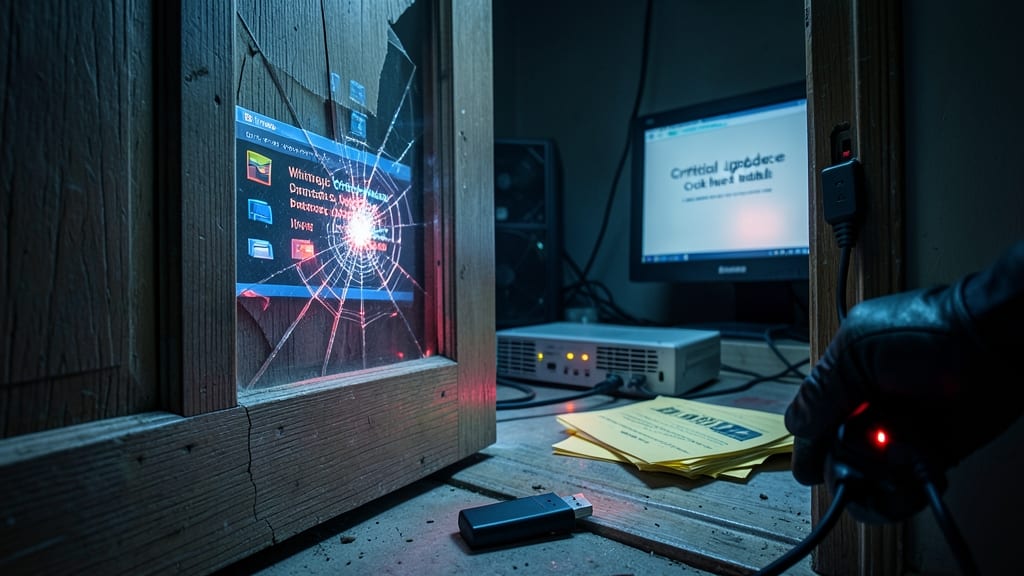
Cybercriminals exploit outdated software like a thief slipping through an unlocked door—because 90% of successful attacks leverage unpatched vulnerabilities. Regular updates aren’t just about new features; they’re your first line of defense against exploits targeting everything from your OS to your web browser.
Most modern operating systems (like Windows 10/11 and macOS Ventura) now offer automatic updates for critical security patches, but you’ll still need to manually check apps like Adobe, Java, or browsers. Tools like Patch My PC or Windows Update for Business streamline this process for enterprises, while Windows Defender’s Offline Scan ensures malware-infected systems get cleaned before updates apply.
This is non-negotiable for anyone handling sensitive data—whether you’re a freelancer, remote employee, or small business owner. Set aside 10 minutes weekly to verify updates, and you’ll block the most common attack vectors before they become a problem. ⚡
Secure Password Management System
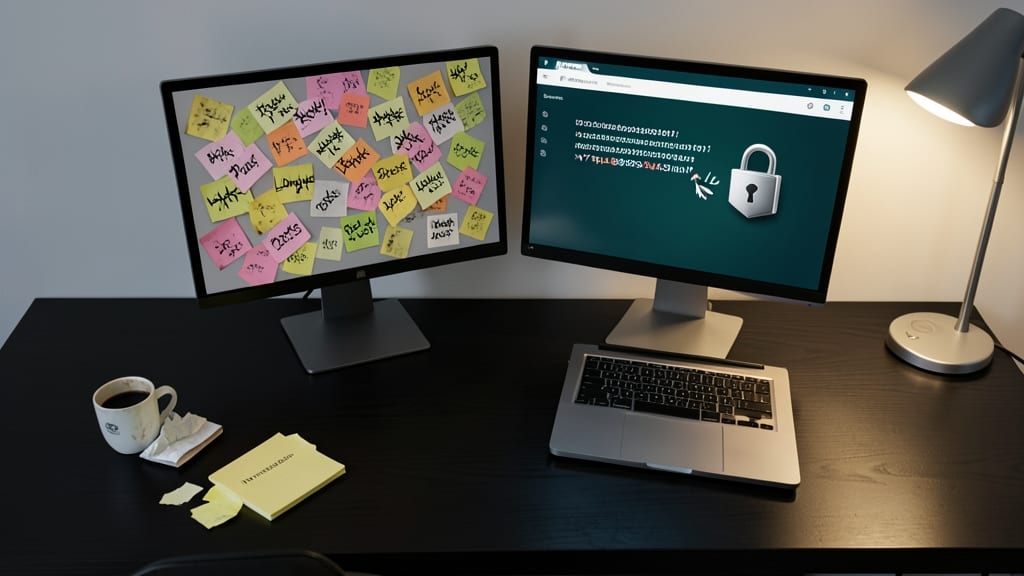
Tired of juggling passwords that look like random keyboard smashes? A secure password manager like Bitwarden or 1Password replaces them with a single, military-grade encrypted vault—no more sticky-note chaos.
These tools generate and store 20+ character passwords with a click, auto-fill login details securely, and sync across all your devices. With zero-knowledge architecture, even the company can’t access your credentials. The best part? You’ll spend less time resetting passwords and more time focusing on work.
Perfect for remote workers juggling personal and professional accounts, or anyone who’s ever clicked “Forgot Password?” more times than they’d like to admit. ✨
VPN Usage for All Remote Connections
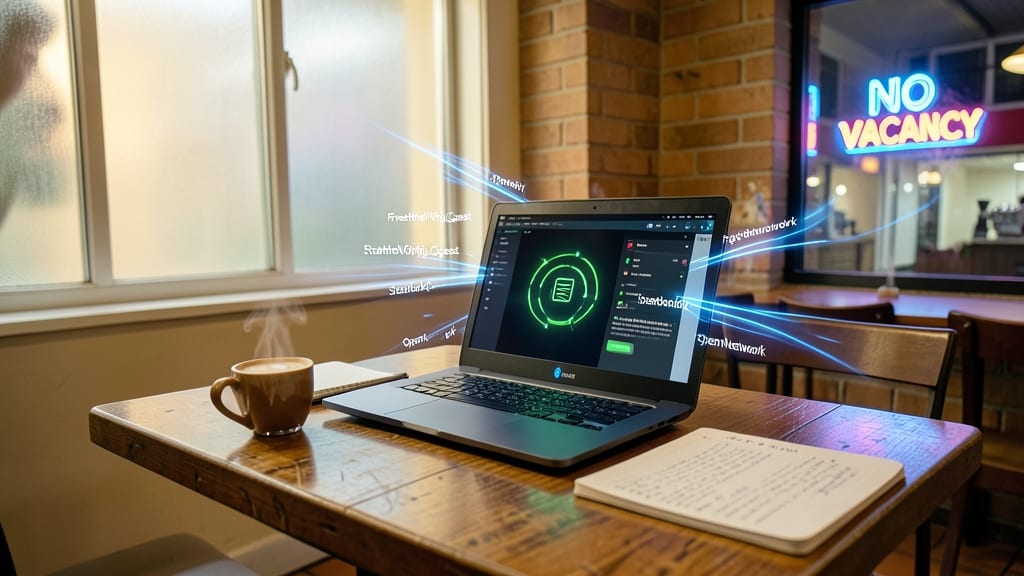
Public Wi-Fi at coffee shops or hotels isn’t just convenient—it’s a magnet for cybercriminals. A VPN (Virtual Private Network) creates an encrypted tunnel for all your internet traffic, shielding you from man-in-the-middle attacks and snooping on unsecured networks.
Modern VPNs like NordVPN or ExpressVPN offer military-grade encryption, automatic kill switches (cutting connections if the VPN drops), and servers optimized for speed. They’re not just for browsing—they’re essential when accessing company resources remotely, ensuring your data stays private even on shared networks.
This is a must-have for freelancers, remote employees, and anyone who values privacy. Enable it before connecting to any public Wi-Fi, and keep your work safe from prying eyes. 💻
Phishing Resistance Training and Simulations
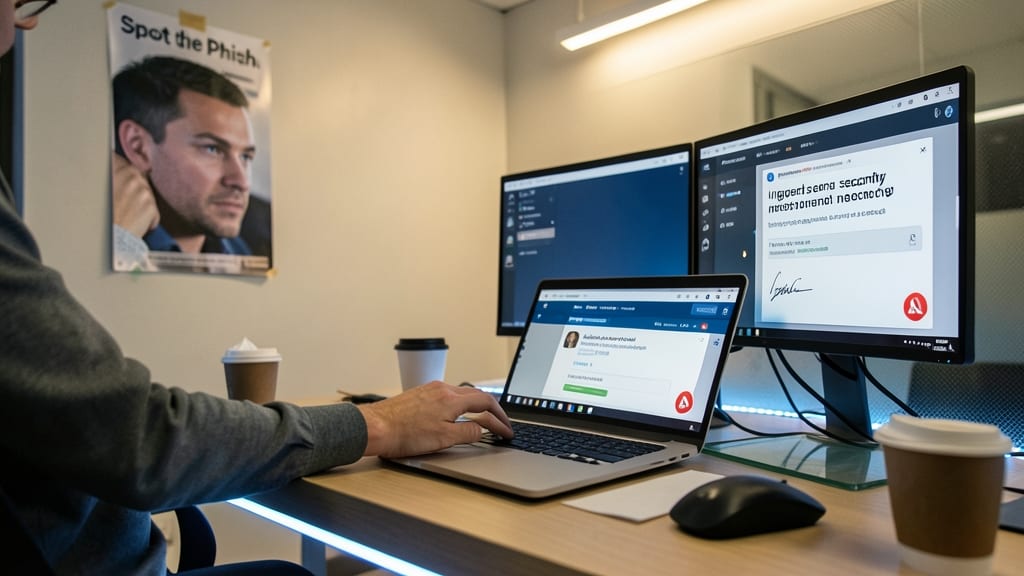
Cybercriminals don’t just hack systems—they trick humans. Phishing simulations expose employees to realistic attack scenarios, turning them into proactive defenders instead of passive targets. Platforms like KnowBe4 or Proofpoint deliver customizable campaigns that mimic real-world threats, from fake invoice scams to urgent "CEO in distress" emails.
These programs track your team’s progress, showing exactly where vulnerabilities lie—like which departments fall for urgent-sounding subject lines> or fake login portals. The best solutions even simulate spear-phishing> (targeted attacks) and provide instant feedback, reducing click-through rates by an average of 70% within months. The interactive quizzes and gamified challenges make security training engaging, not tedious.
This approach is perfect for teams handling sensitive data or remote workers who may feel isolated from IT support. 💪
Physical Security for Remote Workspaces
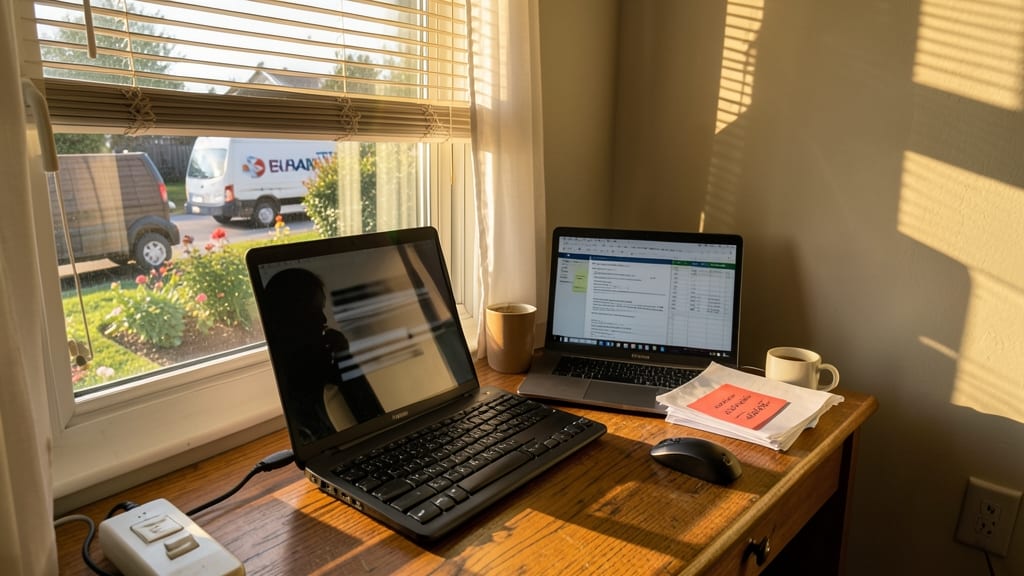
Your home office might feel private, but a curious roommate, delivery person, or even a neighbor peeking through windows can easily spot sensitive details on your screen. Physical security closes these gaps with simple, often free measures that digital defenses alone can’t handle.
Start with a privacy screen filter for your monitor (like Nulaxy’s anti-glare + anti-spy models) to block side-angle viewing. Add a cable lock (under $15) to secure laptops to your desk when stepping away, and use a locked drawer or safe for physical documents with sensitive data. Even a webcam cover (like the built-in slide on MacBooks) prevents unauthorized video access when not in use.
This is especially critical for freelancers, contractors, or anyone handling client data—80% of security breaches involve physical access or observation. A few minutes of setup can stop shoulder surfing and unauthorized device access before they become bigger problems. 💪
Automated Threat Detection and Response Tools
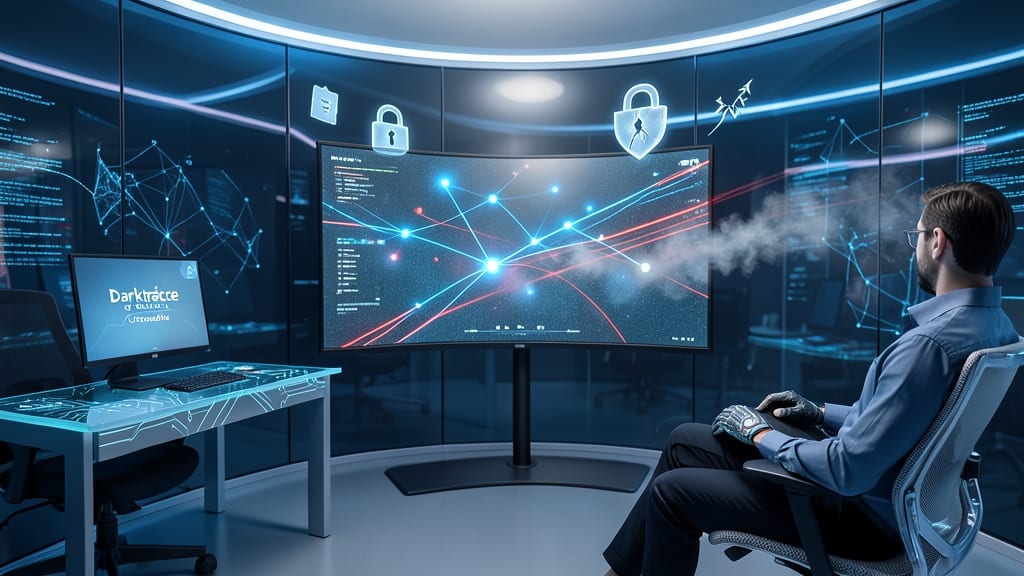
When traditional defenses fail, AI-driven threat detection steps in to outsmart cybercriminals before they strike. Tools like Darktrace or CrowdStrike use machine learning to analyze network traffic patterns, flagging suspicious behavior—like lateral movement or data exfiltration—that manual checks would miss.
These platforms offer real-time response automation, isolating compromised devices or blocking malicious IPs within seconds. For example, CrowdStrike’s Falcon detects and neutralizes threats with 99.9% accuracy, while Darktrace’s Antigena autonomously contains breaches by reversing suspicious actions. They integrate seamlessly with existing security stacks, requiring minimal setup.
Ideal for businesses handling sensitive data or high-risk operations, these tools act as a 24/7 security guard—perfect for IT teams stretched thin or remote workers needing an extra layer of protection without heavy lifting. ✨