
Coding
Struggling with messy text data in Excel? These 10 essential text functions will transform raw information into clean, organized datasets with ease. From simple fixes to advanced manipulations, each function includes real-world examples to boost your productivity immediately.
Concatenate Function for Combining Text Strings
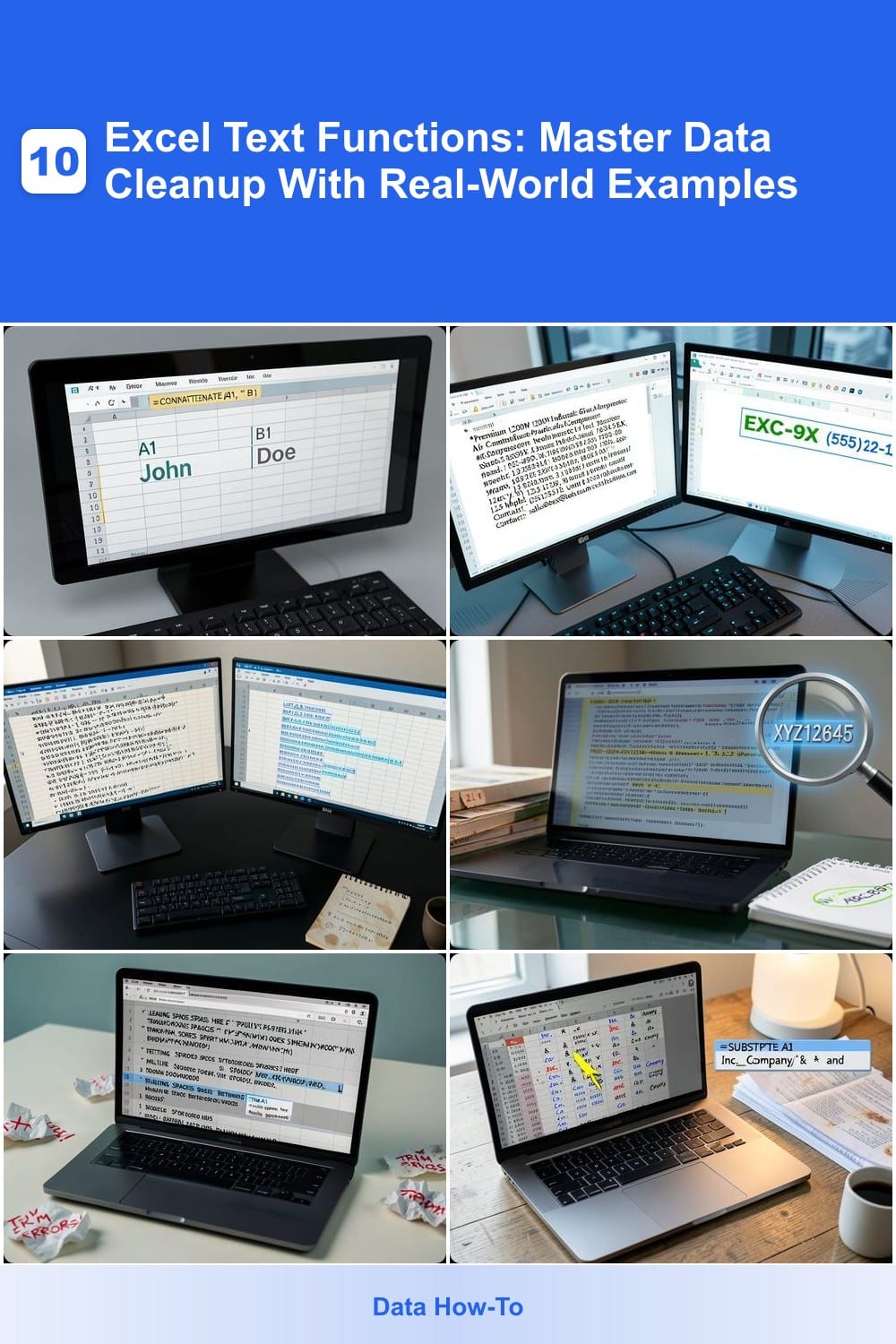
Struggling to combine first names and last names into a single column? The CONCATENATE function is your secret weapon for merging text from multiple cells into one clean, professional format—no manual typing required.
Simply use =CONCATENATE(A1, " ", B1) to merge the contents of cells A1 and B1 with a space in between. This function is perfect for creating full names from split columns, generating product labels, or combining data for reports. For example, if A1 contains "John" and B1 contains "Doe," the formula returns "John Doe."
Small business owners and data analysts will love how it automates tedious tasks like creating mailing lists or formatting headers. Try it today—your spreadsheets will never look so polished! ⚡
Text Function for Extracting Specific Characters
Stuck with long strings of text where you only need a small piece—like extracting a product ID from a full description or pulling a phone number from a messy address? The TEXT function in Excel is your precision tool for converting text into a specific format, like dates, decimals, or even custom codes.
Use =TEXT(value, "formattext") to reshape data on the fly. For example, =TEXT(A1, "00000") turns "123" into "00123," perfect for standardized IDs. Or try =TEXT(B2, "mm/dd/yyyy") to convert a serial number like "20230515" into a readable date. Unlike LEFT or MID, TEXT doesn’t just extract—it reformats, making it ideal for reports or APIs requiring strict formats.
Accountants standardizing dates, developers parsing logs, or small business owners cleaning invoices will find TEXT indispensable for automated formatting. Give it a try—your datasets will never look so polished! ⚡
Left and Right Functions for Trimming Text
Tired of dealing with extra characters clogging up your data? The LEFT and RIGHT functions in Excel are your secret weapons for trimming unwanted text from the start or end of strings—no manual editing required.
Use LEFT(A1,5) to extract the first 5 characters from cell A1, or RIGHT(B2,3) to grab the last 3 characters. These functions are perfect for cleaning up product codes (e.g., removing "XYZ" from "ABC123XYZ"), standardizing phone numbers, or isolating prefixes like "Order#". They’re also great for debugging when extra symbols sneak into your data.
Small businesses and data analysts will love these for quick cleanup before importing into other systems. Try them today—your datasets will thank you! ⚡
Mid Function for Extracting Middle Text Segments

Tired of digging through long strings of text to find that one critical piece of information? The MID function lets you extract specific segments from the middle of any text string—like pulling a serial number from a product description or isolating a version code from a software name.
With MID(text, startnum, numchars), you define exactly where to start and how many characters to pull. For example, =MID(A2, 11, 5) extracts "2.0.1" from "Software v2.0.1 (2023)." It’s perfect for parsing log entries, inventory codes, or any structured text where the key details hide in the middle.
Data analysts and IT teams rely on MID to automate extraction tasks that would otherwise require manual copying. Try it on your next dataset—it’s the precision tool for text cleanup. ✨
Trim Function for Removing Extra Spaces

Ever spent hours manually cleaning up messy data in Excel—only to realize extra spaces are throwing off your formulas and reports? The TRIM function is your secret weapon for instantly fixing irregular spacing in text, whether it’s leading spaces, trailing spaces, or multiple spaces between words. Unlike LEFT or RIGHT, which only target edges, TRIM tackles all three types of spacing in one go.
Simply type =TRIM(A1) in a cell, and it will return the text from cell A1 with all extra spaces removed. This function is a lifesaver when working with imported data (like CSV files) or merged columns where formatting gets corrupted. For example, if cell A1 contains " Hello World ", TRIM will convert it to "Hello World"—no manual editing required.
Perfect for data analysts, business owners, or anyone dealing with inconsistent text formats, TRIM ensures your datasets are clean and ready for analysis. ⚡
Substitute Function for Replacing Text

Tired of hunting through spreadsheets to fix typos or standardize abbreviations? The SUBSTITUTE function lets you replace specific words, symbols, or errors across entire datasets with a single formula—no manual edits required.
Use it to swap "Inc." for "Company", convert "&" to "and", or even fix "123-456-7890" to "(123) 456-7890" in one go. The syntax is simple: =SUBSTITUTE(text, oldtext, newtext, [instancenum]), where the optional instancenum lets you target only the first, second, or all occurrences. It’s perfect for cleaning up imported data, enforcing consistent formatting, or preparing text for reports.
Small business owners and data analysts will love how it saves hours of manual work—just paste the formula, and let Excel handle the rest. ✨
Find Function for Locating Text Positions

When you need to pinpoint where specific text lives inside a cell—like finding the exact position of a hyphen in a product code or locating an "@" symbol in an email—Excel’s FIND function is your secret weapon. Unlike functions that extract or trim text, FIND returns the starting position of a substring, measured in characters, making it perfect for dynamic data validation or formula debugging.
The syntax is simple: =FIND(findtext, withintext, [startnum]), where findtext is what you’re searching for, withintext is the cell reference, and the optional startnum lets you begin searching from a specific position. For example, =FIND("@", A2) returns the position of the "@" in an email address, while =FIND("-", B2, 3) locates the first hyphen after the third character. Combine it with MID or LEFT to extract dynamic substrings, or use it in IF statements to validate data formats.
This function shines for data analysts verifying structured text, developers parsing log files, or anyone cleaning datasets where text patterns vary. Try it next time you need to debug formulas or extract variable-length substrings without hardcoding positions. ✨
Len Function for Counting Characters

Need to ensure your data meets strict character limits? The LEN function is your secret weapon for counting characters in any text string—no manual counting required.
With just =LEN(text), you’ll instantly get the exact character count, including spaces. Use it to validate API inputs (e.g., Twitter’s 280-character limit), enforce username rules, or spot truncated product descriptions. Combine it with IF statements to flag errors like =IF(LEN(A1)>100,"Too long!","OK").
Perfect for data analysts, developers, or anyone prepping files for external systems. ⚡
Lower and Upper Functions for Case Conversion

Need to standardize text for sorting, filtering, or comparisons? The LOWER and UPPER functions in Excel are your secret weapons for consistent case formatting—critical when matching records or preparing data for case-sensitive operations.
Use LOWER to convert all text to lowercase (e.g., =LOWER(A1)) or UPPER to force uppercase (e.g., =UPPER(B2)). These functions ensure uniformity in email addresses, product codes, or database entries, eliminating mismatches caused by mixed-case text. Combine them with VLOOKUP or XLOOKUP for foolproof data validation.
Perfect for database managers, analysts, or anyone merging datasets with inconsistent formatting. A quick fix that saves hours of manual editing! ✨
Clean Function for Removing Non-Printable Characters

Ever imported data that looks fine but refuses to format correctly? The CLEAN function is your secret weapon against invisible culprits like non-breaking spaces, zero-width characters, or hidden formatting marks that sabotage your spreadsheets.
With just one formula—=CLEAN(text)—you can strip out all non-printable ASCII characters (codes 0-31 and 127) while preserving your actual data. It’s perfect for fixing merged files, cleaning up copied-and-pasted text, or preparing data for reports where formatting errors cause alignment issues. Unlike TRIM, which only handles spaces, CLEAN tackles the full spectrum of invisible glitches.
Accountants reconciling bank statements or marketers merging survey data will find this function especially valuable. Try it on your next messy dataset—you’ll be amazed at how much cleaner your text becomes. ✨