
Tip & Trick
Microsoft Teams is a powerhouse for collaboration—but most users only scratch the surface. These 10 underutilized tips and tricks for 2023 will transform how you manage meetings, organize files, and communicate, saving you hours every week.
Customize Quick Access Toolbar for Frequent Actions
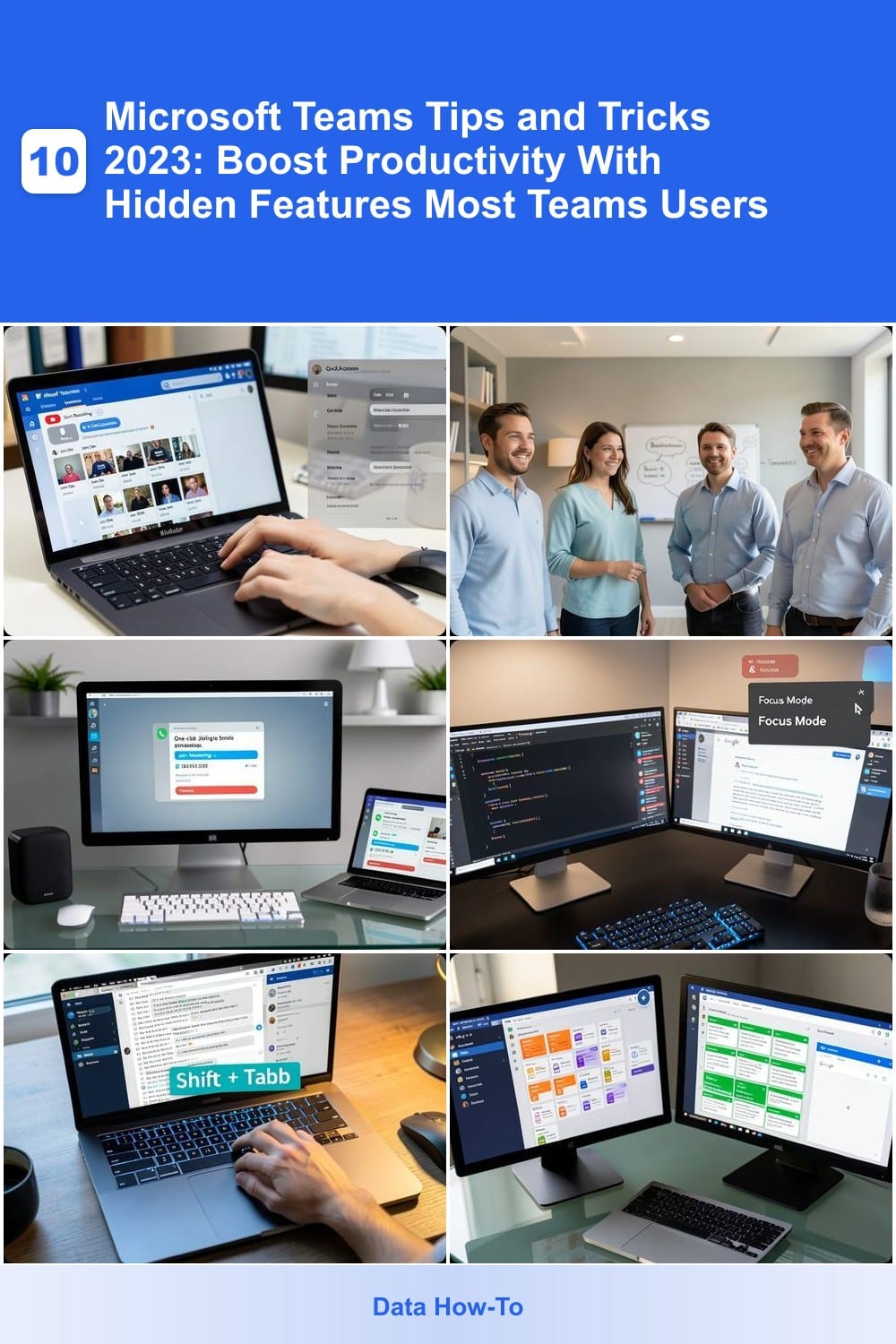
Tired of wasting time clicking through menus during meetings? The Quick Access Toolbar in Microsoft Teams lets you pin your most-used commands—like Start Recording or Turn on Live Captions—right where you need them. No more digging through settings every time you need to capture a discussion or enable subtitles.
To customize it, click the three-dot menu in a meeting, select Show commands, and choose from options like Spotlight, Raise Hand, or Turn on Live Captions. Drag your favorites to the toolbar, and they’ll appear instantly. This trick cuts down on repetitive clicks, making meetings smoother and more efficient—especially for presenters or note-takers.
Perfect for trainers, educators, or anyone hosting frequent meetings, this feature turns Teams into a powerhouse for seamless collaboration. ⚡
Use 'Together Mode' for More Engaging Virtual Meetings

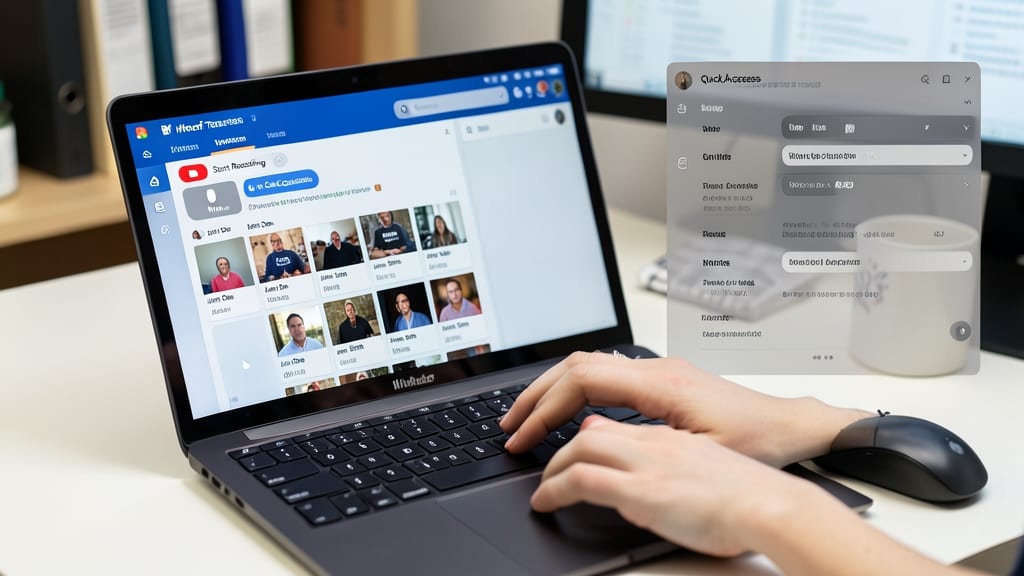
Tired of staring at a grid of video tiles that feel more like a surveillance feed than a collaboration space? Together Mode in Microsoft Teams transforms your virtual meetings into a shared environment where participants appear side-by-side in a virtual office or classroom layout—just like they’re in the same room.
To enable it, start or join a meeting, then click the three-dot menu and select Together mode. Choose between a classroom (ideal for training) or office (perfect for brainstorming) layout, and watch as the meeting instantly feels more natural. The feature works with up to 49 participants and syncs video feeds smoothly, even over slower connections. Best of all, it’s zero-config—no virtual backgrounds or setup required.
Perfect for remote teams, educators, or anyone leading creative sessions, Together Mode turns passive video calls into active, engaging discussions. Try it next time you’re hosting a workshop or team-building session—your participants will thank you! ✨
Schedule Meetings with One-Click Joining Links
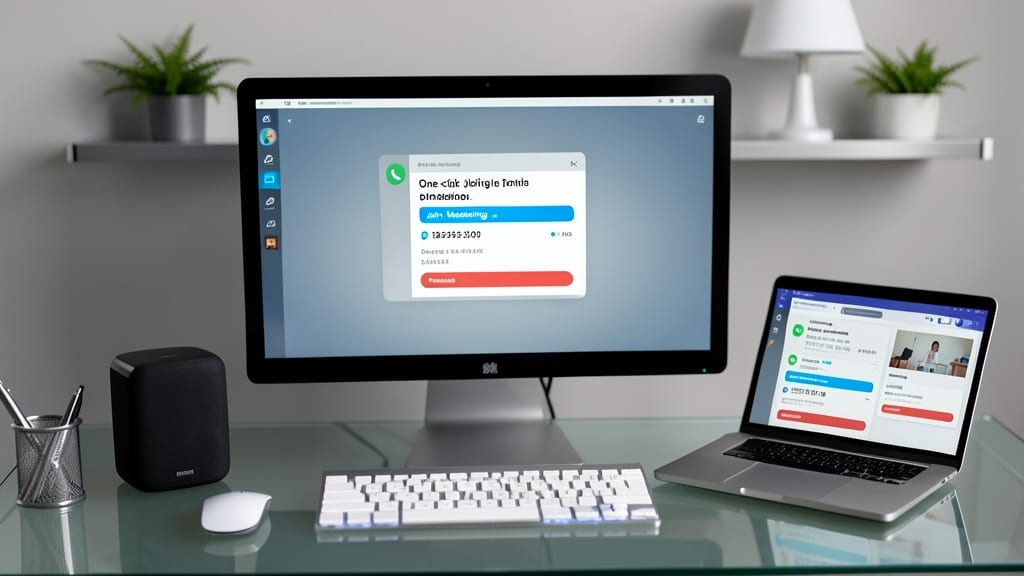
Say goodbye to sending separate calendar invites and dial-in details—Microsoft Teams now lets you create one-click joining links that bundle everything into a single shareable URL. This feature automatically includes the meeting time, calendar invite, dial-in numbers, and even a randomized passcode for security, all in one clickable link.
To generate one, simply schedule a meeting in Teams, then click "Join link" in the meeting details. The link works instantly for internal and external guests, eliminating back-and-forth emails. You can also customize the passcode or disable it if needed. Perfect for last-minute brainstorming sessions or when inviting clients who don’t use Teams.
Freelancers, consultants, and teams collaborating with external partners will love this—no more juggling multiple links or explaining how to join. Just share, and they’re in. ✨
Enable 'Focus Mode' to Minimize Distractions
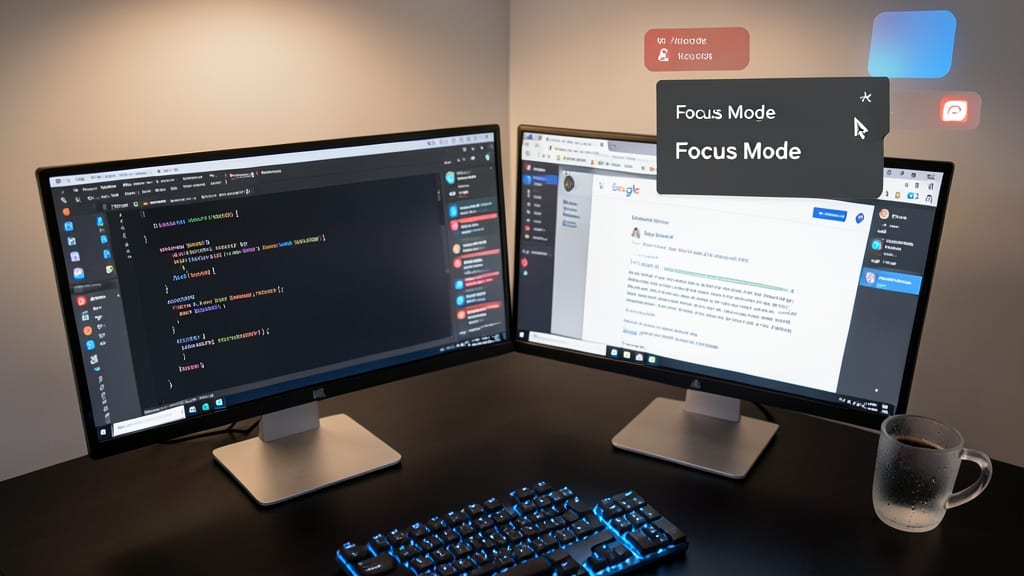
Drowning in notifications while trying to write code or craft the perfect sentence? Microsoft Teams’ Focus Mode lets you silence distractions without missing critical updates—perfect for developers debugging or writers in the zone.
To enable it, right-click a channel or chat, select "Focus Mode", and choose which notifications to mute. You’ll still receive @mentions and messages marked "Urgent", ensuring you stay connected without losing concentration. The best part? It syncs across devices, so your focus stays intact whether you’re on desktop or mobile.
Ideal for freelancers, programmers, or anyone juggling multiple tasks, Focus Mode turns chaotic workdays into productive deep-work sessions. ⚡
Use 'Shift + Tab' for Faster Chat Navigation
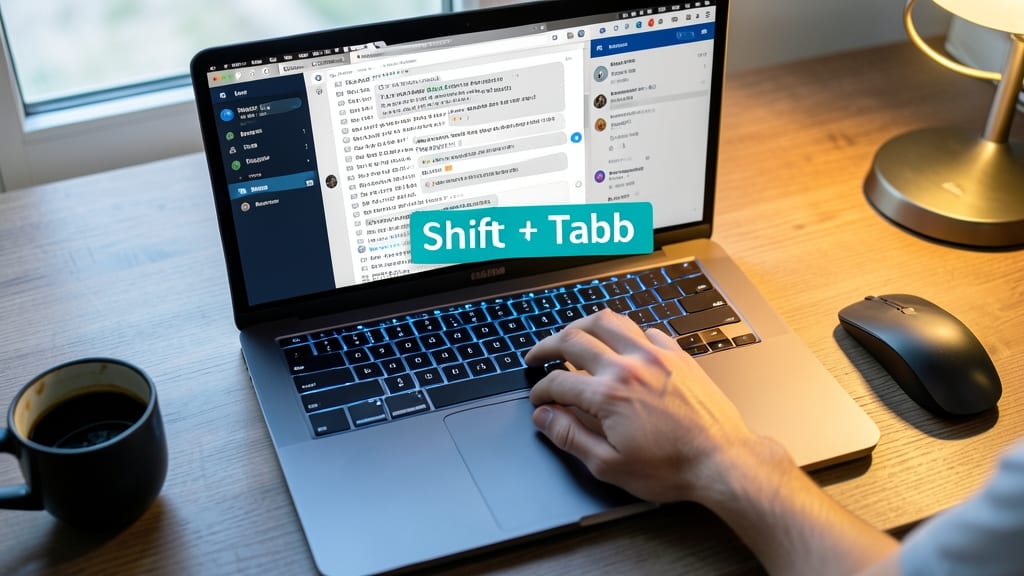
Tired of scrolling through endless chat threads to find that one critical message? The 'Shift + Tab' shortcut lets you navigate chats backwards with a single keystroke—no mouse needed. Perfect for reviewing long conversations or pinpointing specific replies without losing your place.
Simply press Shift + Tab to jump to the previous message, or hold it down to cycle through multiple messages at once. This works in both 1:1 chats and group channels, making it ideal for catching up on discussions quickly. No more endless scrolling—just instant access to what you need.
This trick is a game-changer for customer support reps, project managers, or anyone drowning in chat volume. Try it next time you’re reviewing a busy thread—your fingers (and sanity) will thank you. ⚡
Create Custom Tabs for Favorite Apps
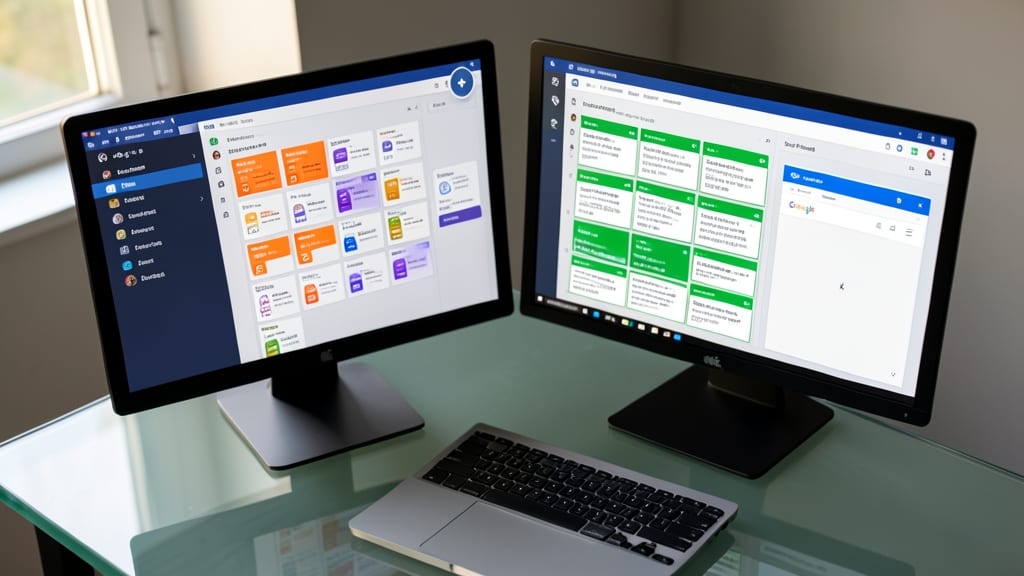
Tired of bouncing between apps during workdays? Microsoft Teams’ custom tabs feature lets you embed Trello, Asana, Google Docs, or even Slack directly into your workspace, so everything stays in one place.
Simply click the + icon in your channel sidebar, select Tabs, and choose from 100+ integrations—no extra logins or browser tabs needed. Pin your most-used tools (like Notion for notes or Zoom for quick calls) to keep them always accessible. This trick is a game-changer for project managers juggling multiple tools or teams collaborating on shared documents.
Perfect for remote teams, freelancers, or developers who want to cut context-switching time. Try it today and never lose focus again! ✨
Use 'Meeting Notes' with AI-Powered Transcripts

Tired of scrambling to recall key decisions or action items after meetings? Microsoft Teams’ Meeting Notes feature turns live captions into searchable, AI-generated summaries—automatically. No more frantically typing notes or digging through recordings; just review polished notes with timestamps and speaker labels.
Enable it by clicking the three-dot menu in a meeting, then selecting Meeting Notes. The AI highlights action items, decisions, and questions in real time, saving them to the chat for easy reference. Works best with Live Captions (now supporting 40+ languages) and integrates seamlessly with Teams’ existing file-sharing tools.
Perfect for project managers, legal teams, or anyone leading cross-functional meetings—this is the ultimate tool for accountability without extra effort. ✨
Set Up 'Private Channels' for Sensitive Discussions
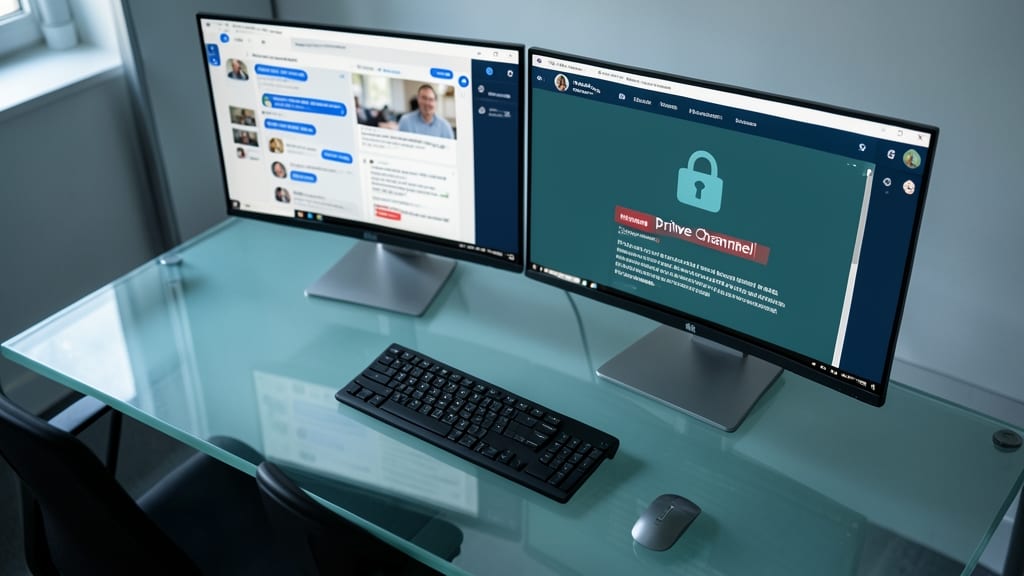
Not every conversation belongs in the open—especially when discussing HR policies, legal strategies, or financial reviews. Microsoft Teams’ Private Channels let you create secure spaces where only approved members can join, keeping sensitive topics out of prying eyes.
To set one up, navigate to your team’s channel list, click the "+" icon, and select "Private channel". You’ll then manually add members, ensuring only those with clearance can access the discussions. Files shared here stay restricted too, with no accidental leaks to the broader team.
This feature is a game-changer for departments handling confidential data, like legal or finance teams. No more side emails or password-protected files—just a clean, built-in solution for secure collaboration. ✨
Use 'Background Blur' for Professional Video Calls

Tired of explaining why your cluttered desk keeps appearing on video calls? Microsoft Teams' Background Blur feature is your secret weapon—no virtual backgrounds or green screens required. It intelligently blurs your surroundings in real-time, keeping the focus squarely on you while maintaining a polished, distraction-free appearance.
To enable it, simply click the three-dot menu during a video call, select Background blur, and adjust the intensity to your liking. The feature works seamlessly with Windows 10/11 and macOS, and it’s especially effective in well-lit environments. Unlike static virtual backgrounds, blur adapts dynamically, ensuring your workspace stays out of the spotlight without sacrificing clarity. ⚡
This trick is a game-changer for remote workers, freelancers, and educators who want to project professionalism without the hassle of setting up a dedicated call space. Perfect for spontaneous meetings or when you’re caught between tasks and can’t tidy up your desk!
Automate File Sharing with 'Teams Drive'
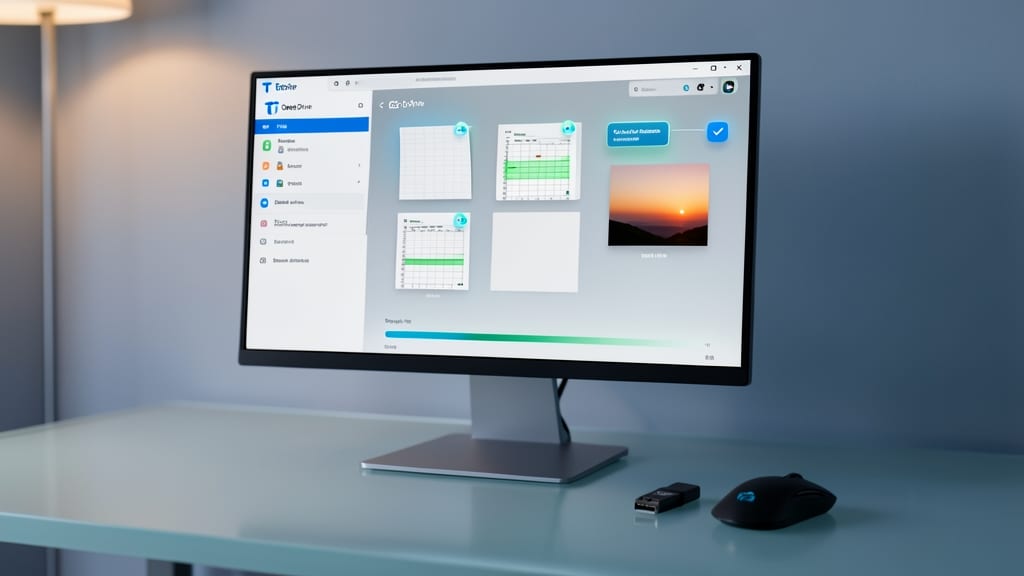
Tired of digging through email attachments or losing track of shared files? Teams Drive turns your Teams workspace into a seamless file-sharing hub, syncing directly with OneDrive for automatic updates and version control.
Upload files to channels, set permissions with one-click sharing, and access them instantly—no more "Did you get the latest version?" messages. The integration with Office 365 apps means edits in Word or Excel sync across devices, while the search function finds documents faster than manual file explorers.
Perfect for project teams or remote workers, Teams Drive keeps everyone aligned without the clutter of external tools. ⚡