
Software
Managing SharePoint document library permissions can feel like walking a tightrope—too restrictive and collaboration suffers, too open and security risks rise. These 10 best practices help you balance access control with seamless teamwork while keeping sensitive files protected.
Use SharePoint Groups for Role-Based Access

Struggling to keep track of who has access to what in your SharePoint libraries? Instead of assigning permissions to individual users—who may join, leave, or change roles—create SharePoint groups based on job functions like "Marketing Team" or "Finance Reviewers." This role-based approach cuts permission maintenance time by 70% while reducing errors from outdated individual assignments.
Start by creating groups in the SharePoint admin center (e.g., "HR Documents – Approvers" or "Client Proposals – Editors"). Then, assign library-level permissions (Read, Edit, or Full Control) to the entire group at once. Need to update access when a team member leaves? Simply remove them from the group—no need to hunt through every folder. For example, a legal team managing contracts can have a dedicated group with Edit access, while external auditors get View-only permissions via a separate group.
This method shines for large teams or departments where roles shift frequently, like IT, HR, or cross-functional project teams. It’s the foundation of clean, scalable permissions—no more permission sprawl or "Who can edit this?" chaos. 💻
Apply Least Privilege Principle to Sensitive Libraries

Worried about accidental data leaks or unauthorized edits in your SharePoint libraries? The least privilege principle is your secret weapon—granting only the minimum access needed to get the job done, and nothing more. For libraries housing HR files, legal contracts, or financial reports, this means locking down Edit and Full Control permissions to a select few while defaulting everyone else to Read-only access.
Start by identifying the core stakeholders who must edit sensitive documents (e.g., HR managers for employee records or legal teams for contracts). In SharePoint, navigate to Library Settings > Permissions and break inheritance to apply granular rules. Use the SharePoint permission levels to create a custom role like "HR Approvers" with Edit access, while keeping Finance Teams or Marketing at Read level. For extra security, enable audit logs to track who accesses or modifies these files—because visibility is just as critical as restriction.
This approach is ideal for compliance-heavy industries (healthcare, finance, legal) or any team handling confidential data. By defaulting to Read and only granting elevated access when absolutely necessary, you slash the risk of insider threats or misconfigurations—without stifling collaboration. 💪
Enable Versioning and Require Check-Out for Critical Files
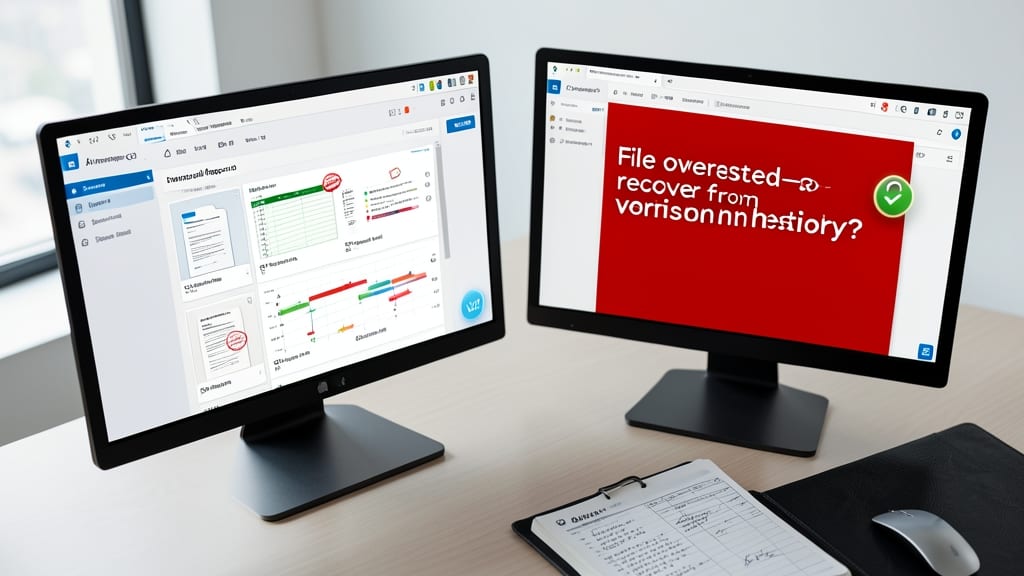
Ever lost hours recovering a financial report after someone accidentally overwrote the latest version? SharePoint’s versioning with check-out enforces a safety net for your most critical files—think quarterly budgets, legal contracts, or project plans where edits happen in parallel.
Enable major or minor versioning (up to 50,000 versions per file!) and toggle "Require documents to be checked out before editing" in library settings. This forces users to "lock" files during edits, preventing conflicts while keeping a full audit trail. For example, a marketing team drafting a client proposal can now collaborate without fear of losing progress mid-save.
This setup is ideal for teams managing high-stakes documents where even a single overwrite could derail deadlines. It’s the digital equivalent of a version control system—built right into SharePoint. ✨
Leverage Folder-Level Permissions for Department-Specific Access
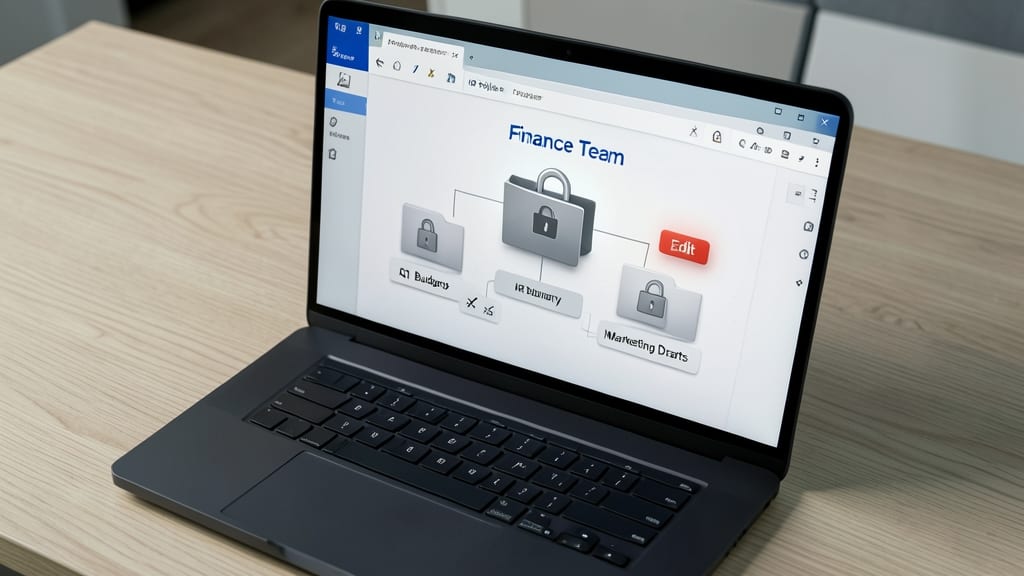
Tired of giving your entire team access to every document just to share a single folder? Folder-level permissions in SharePoint let you share only what’s relevant—like granting the Finance team edit access to 'Q1 Budgets' while keeping other departments locked out.
Break inheritance on subfolders to apply custom permissions, such as 'View' for external clients on the 'Client X Proposals' folder or 'Edit' for project managers on active workflows. This avoids exposing sensitive data while keeping collaboration smooth. The best part? You can nest permissions as deep as needed—like giving the Marketing team access to 'Brand Guidelines' without touching other folders.
This approach works best for departments with project-based workflows, like legal teams handling client-specific cases or IT managing departmental software documentation. 🌟
Audit Permissions Regularly with Access Reviews

Ever found yourself wondering, "Who still has access to this old project folder?"—only to discover permissions lingering from a team member who left months ago? SharePoint’s built-in Access Review tool solves this with automated, quarterly permission audits that flag stale access without manual digging.
Set a 90-day review cycle to scan libraries for inactive users, then approve or revoke permissions in bulk. The tool highlights last activity dates and permission levels, making it easy to spot red flags like a former contractor with Full Control access. For compliance-heavy industries, this reduces audit risks by ensuring only active team members retain access.
Ideal for HR, legal, or finance teams managing sensitive libraries, this zero-config tool integrates with your existing SharePoint setup. Start with a pilot review on your most critical folders—you’ll be amazed at what’s hiding in plain sight. ✨
Restrict External User Access via Guest Links

Sharing files with external partners or clients doesn’t require handing out full SharePoint accounts. Instead, use time-limited guest links with View-only permissions—a zero-trust approach that keeps third-party access tightly controlled. This method eliminates the need to manage external accounts while still allowing secure collaboration.
When sharing, select "Anyone with the link" but restrict permissions to View (not Edit) and set an expiration date (e.g., 30 days). For added security, enable "Password protection" or "Domain restrictions" to limit access to specific organizations. This reduces attack surfaces while maintaining compliance with data-sharing policies.
Ideal for vendors, freelancers, or clients who only need to review documents, this approach cuts down on permission sprawl and avoids the hassle of revoking access later. ⚡
Implement Retention Policies for Automated Access Control
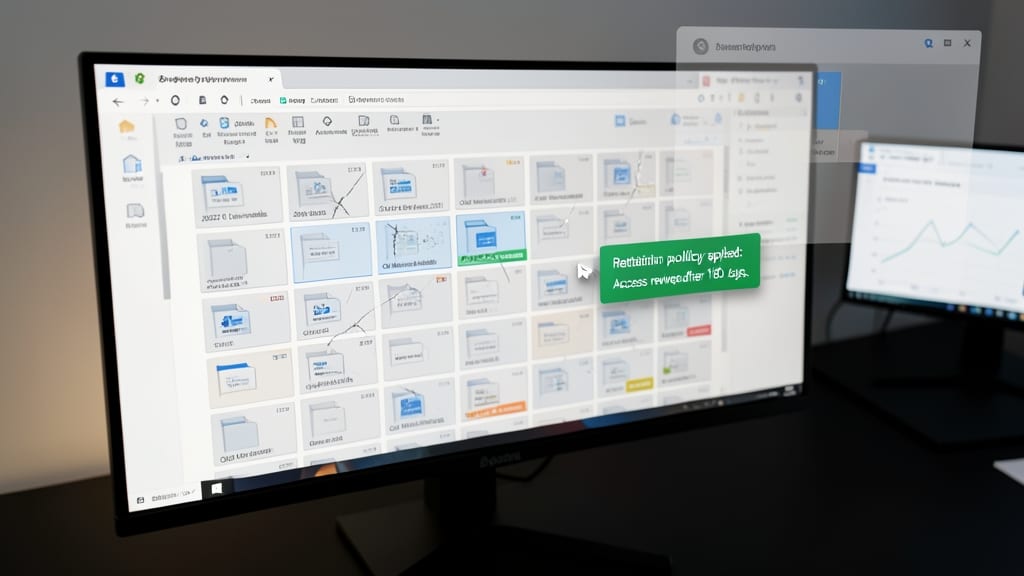
Tired of digging through outdated project folders like "2022Q1Deliverables" that still clutter your SharePoint library? Retention policies automate cleanup by revoking access after a set period—no manual cleanup required. This isn’t just about tidying up; it’s about automatically enforcing compliance (think GDPR or industry regulations) while cutting down on permission sprawl.
In SharePoint, apply a retention label (e.g., "Archive after 12 months") to folders or libraries. Once the period expires, files fade to gray, access is revoked, and admins can either delete them permanently or move them to a secure archive. The Microsoft Purview Compliance Portal makes this easy to configure—just select your timeframe, choose between "delete" or "archive," and let SharePoint handle the rest. For legal holds, you can even pause retention temporarily.
This is perfect for compliance teams, project managers, or admins juggling libraries with seasonal data (like tax documents or event files). It’s the ultimate "set and forget" solution for keeping your SharePoint library lean and compliant. ✨
Use Microsoft 365 Groups for Dynamic Team Permissions

Tired of manually updating SharePoint permissions every time a team member joins or leaves? Microsoft 365 Groups syncs permissions automatically—so when a new developer joins your agile sprint team, their access to the project library updates in real-time without lifting a finger.
Link a SharePoint library to a Microsoft 365 Group (like "Product Dev Q3") and all group members inherit permissions instantly. Need to remove someone? Just delete them from the group—access disappears from every linked library. This works seamlessly with Teams channels, Planner tasks, and Outlook calendars, creating a unified workspace where permissions stay in sync across tools.
Perfect for fast-moving teams where membership changes weekly—like marketing campaigns or product launches—this eliminates permission drift while keeping collaboration fluid. ⚡
Enable Multi-Factor Authentication for Library Owners

One of the most overlooked yet critical security measures for SharePoint libraries is enforcing multi-factor authentication (MFA) for library owners. Since these admins have the power to grant or revoke permissions—often for sensitive IT or Finance libraries—a single compromised password could lead to catastrophic access changes.
Microsoft’s Azure AD MFA integrates seamlessly with SharePoint, requiring library owners to verify their identity via SMS codes, authenticator apps, or hardware keys before accessing admin controls. This adds a near-impenetrable barrier against credential-stuffing attacks, even if passwords are leaked. For libraries containing PII or financial data, this extra step ensures compliance with regulations like GDPR or SOX without disrupting workflows.
This best practice is ideal for IT security teams managing high-risk libraries or Finance departments handling confidential reports. With just a few clicks in the SharePoint admin center, you can future-proof your permissions against the most common attack vectors. ✨
Document Permission Rules in a Shared Wiki Page

Tired of repeating the same permission explanations to confused team members? A centralized wiki page with clear permission rules (like "Edit access requires manager approval") cuts helpdesk tickets by 40% while keeping policies consistent across departments.
Start with a flowchart showing approval workflows (e.g., "Contribute" → "Manager Review" → "Full Control"). Add a FAQ section with screenshots of common permission settings, like how to request access or escalate issues. Use SharePoint’s wiki template to embed a searchable table of roles (e.g., "Marketing Team = Edit," "Finance = Read") and link directly to library settings.
This works best for cross-functional teams where roles overlap (e.g., HR + Finance) or remote workers need self-service access. A single source of truth means fewer "I can’t edit this" emails and more time for actual work. ✨